Changelog
3D & Document Modes, Collections, AI Side Panel & 2FA
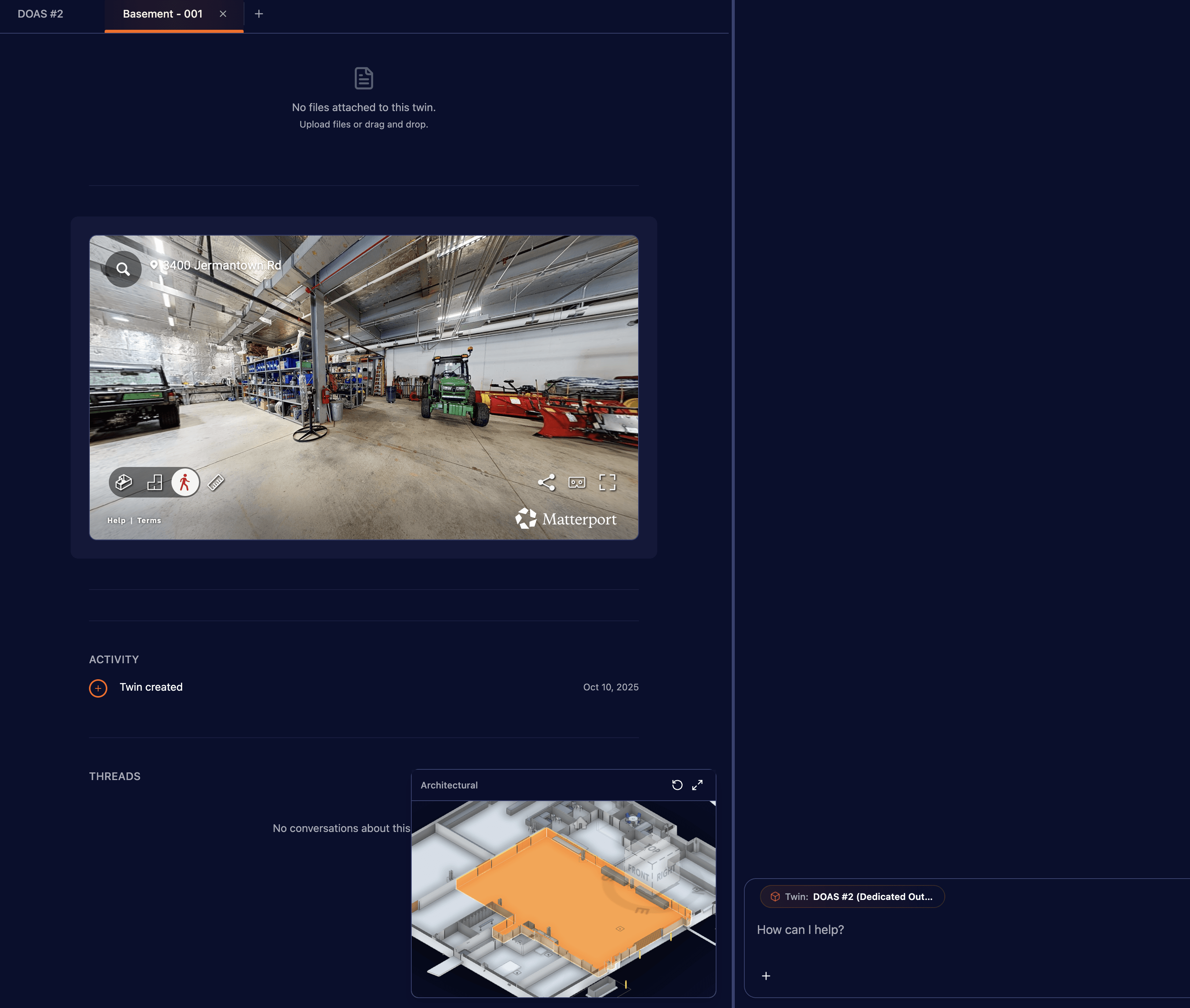
3D vs Document Mode
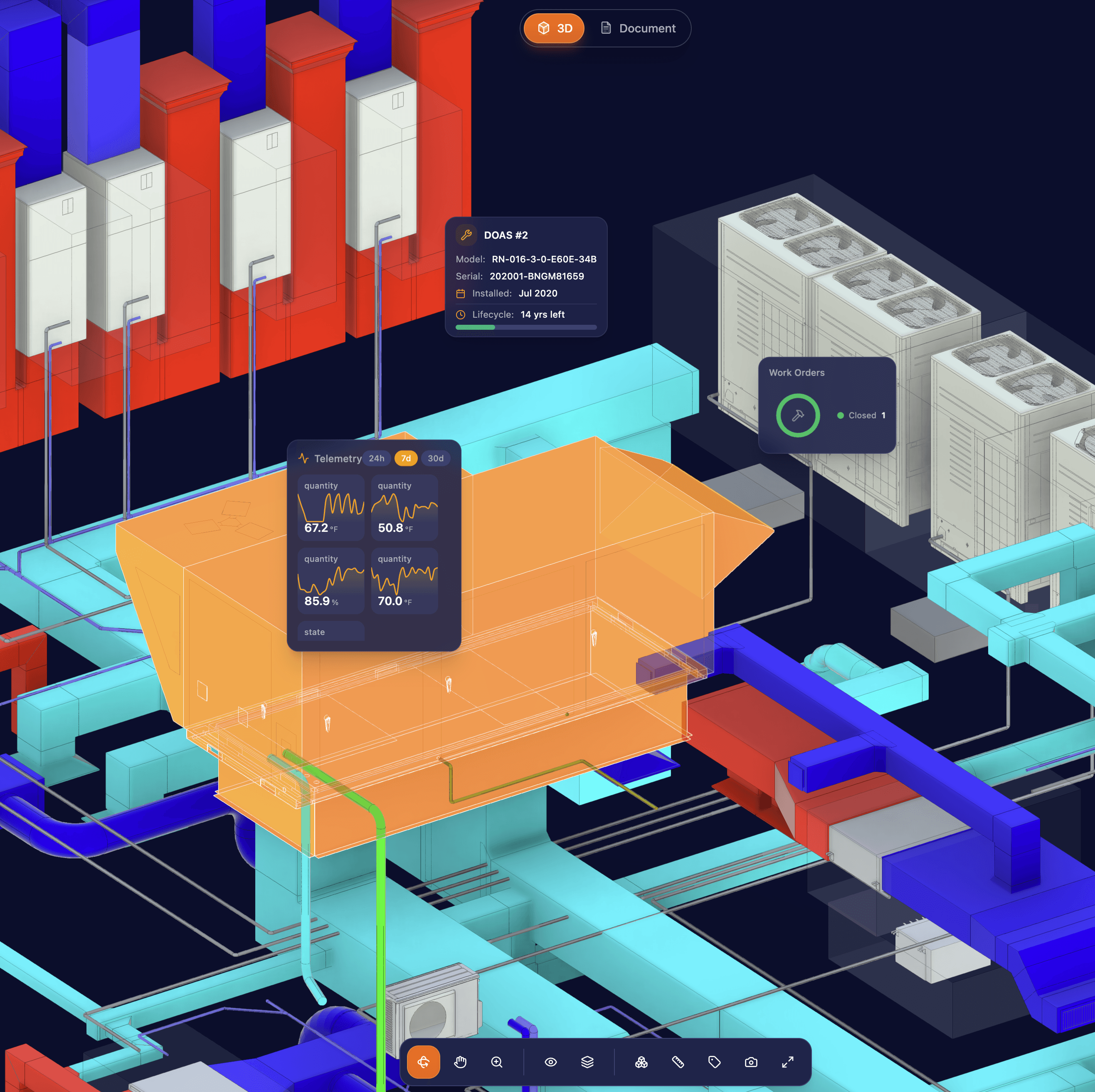
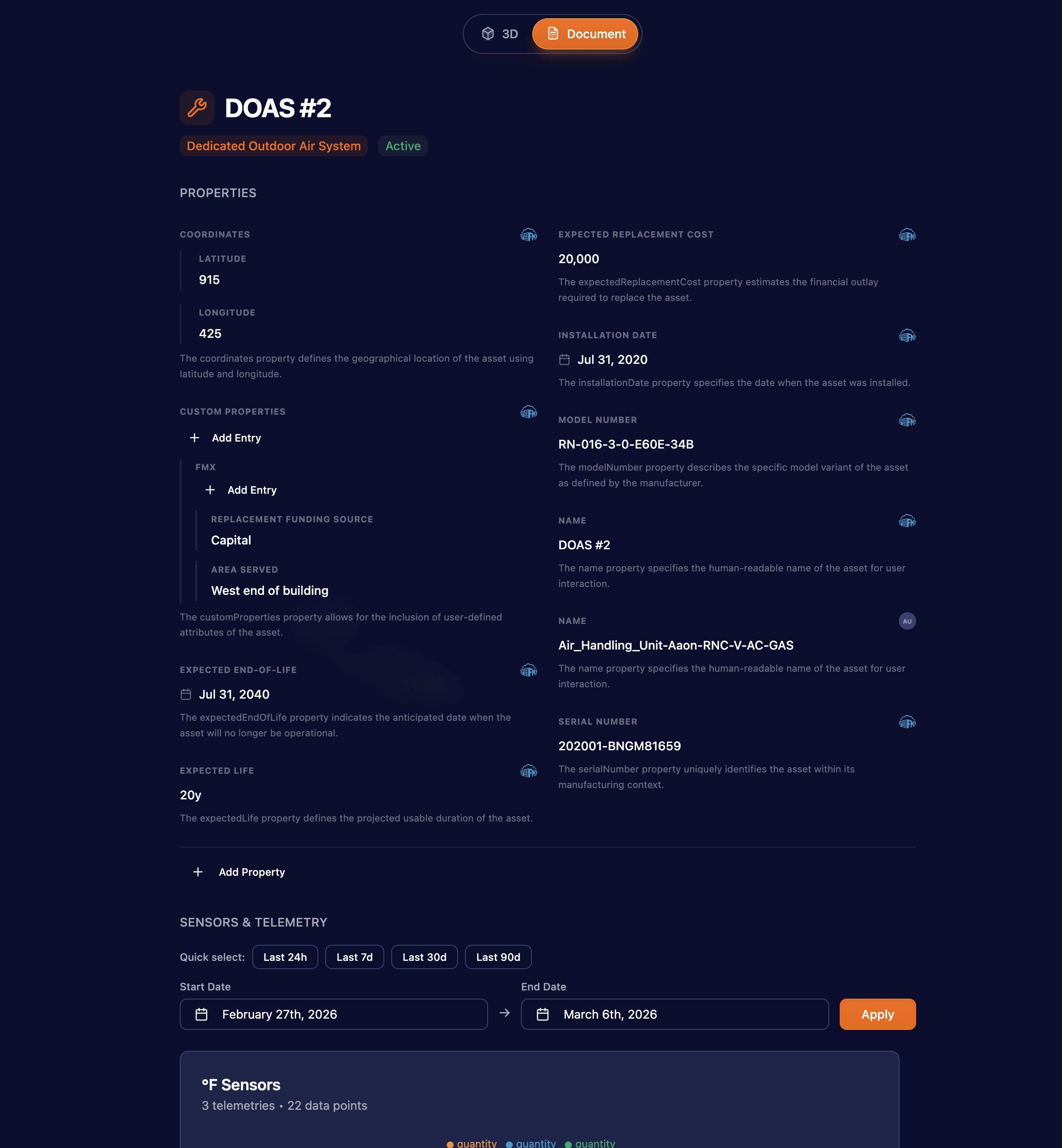
The twin detail experience now supports two distinct viewing modes.
3D Mode displays the building's 3D model with interactive twin visualization, status badges, and work order clustering.
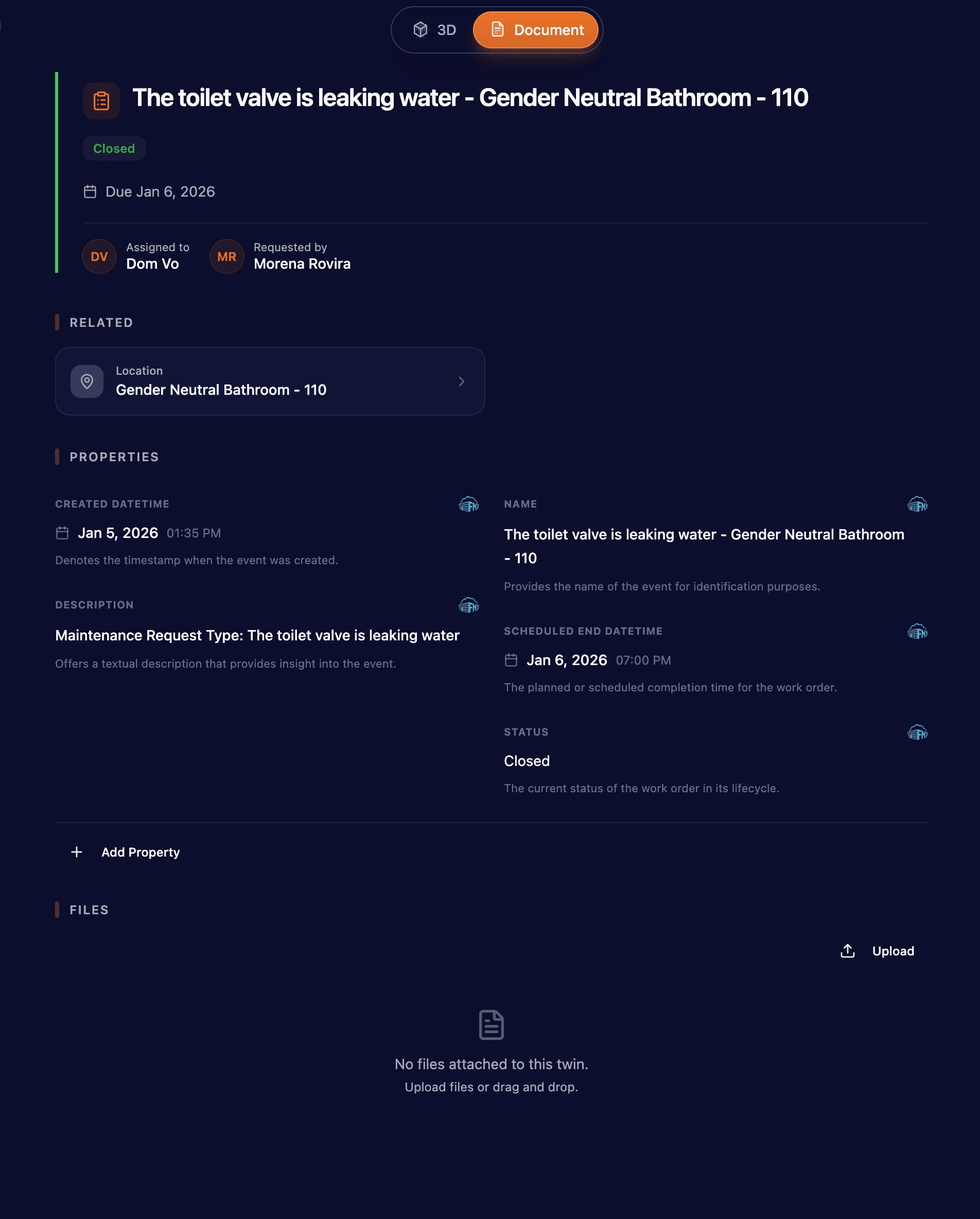
Document Mode presents twin data in a structured, form-like layout with properties, sensors, files, and related work orders organized into readable sections.
Users can switch between modes depending on whether they need spatial context or detailed data review.

AI Assistant Context-Aware Side Panel
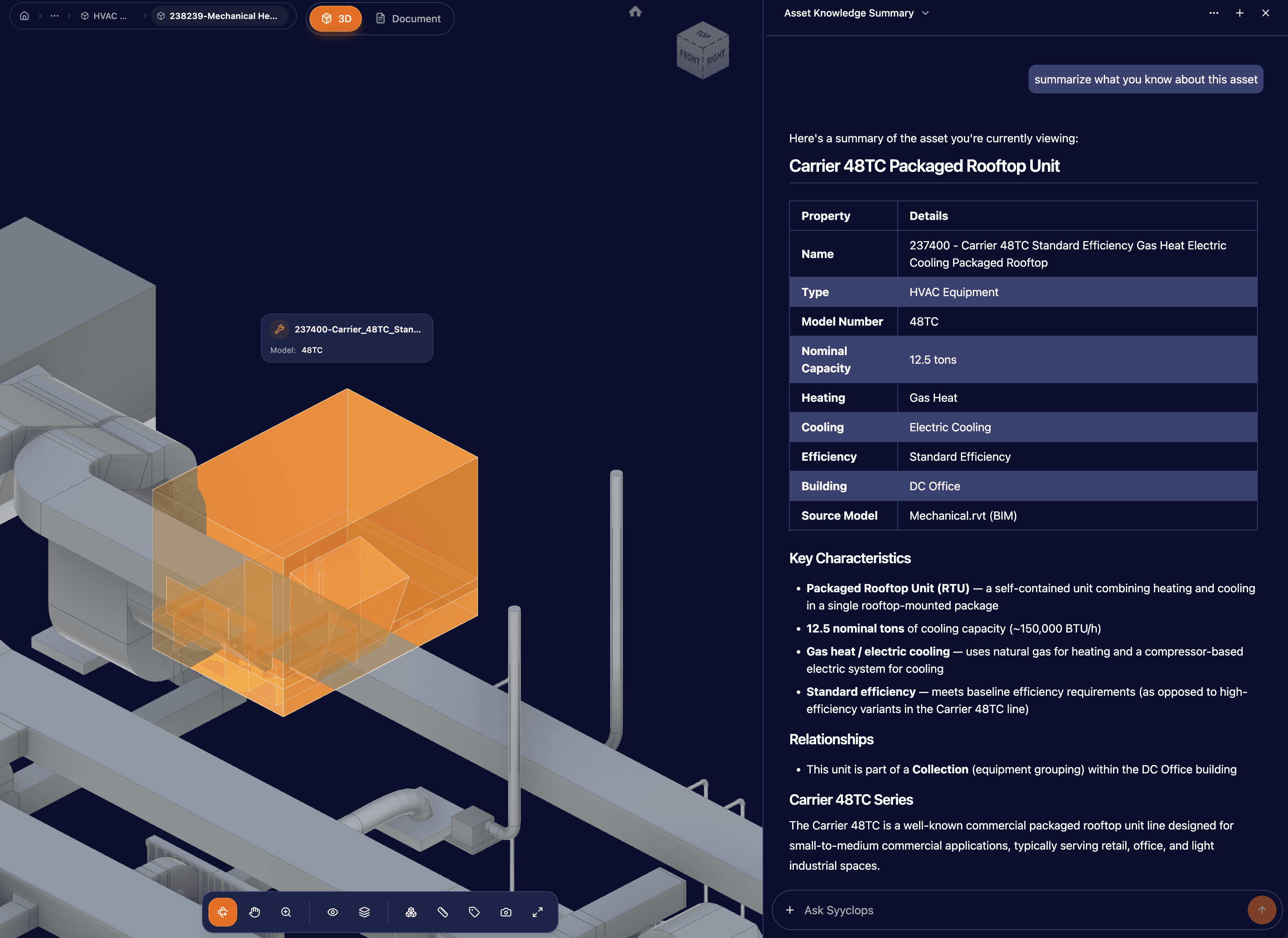
The AI chat assistant has moved from a standalone page to a right-side panel that stays open alongside the twin you're viewing.
The assistant now has full context of which twin, collection, or building you're currently looking at, enabling more relevant and accurate responses.
Ask questions about the equipment, room, or building on screen and the AI uses that context to provide targeted answers.
Collections & Layout System
A new collections-based data organization system with custom detail pages for buildings, rooms, equipment, and work orders.
Facility managers can navigate building data through rich, organized views showing real-time sensor data, work orders, equipment status, and room environments.
Two-Factor Authentication (2FA)
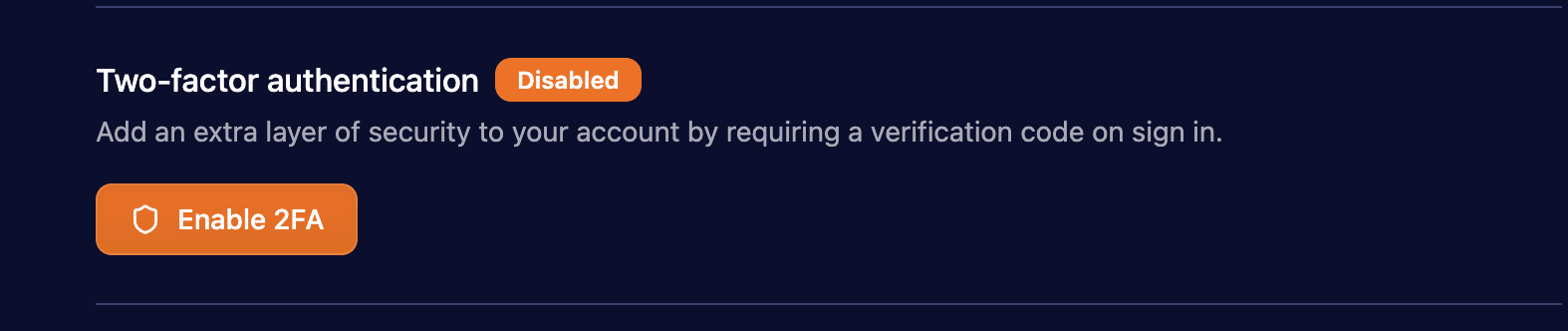
Users can now secure their accounts with two-factor authentication using authenticator apps (TOTP).
Includes backup code generation and trusted device support. New members are prompted to set up 2FA after accepting an organization invitation.
Work Orders
New work order detail pages with relationship tracking, status badges, and assignment info.
Includes enhanced work order visualization in the 3D viewer with clustering.
PDF and Excel File Generation
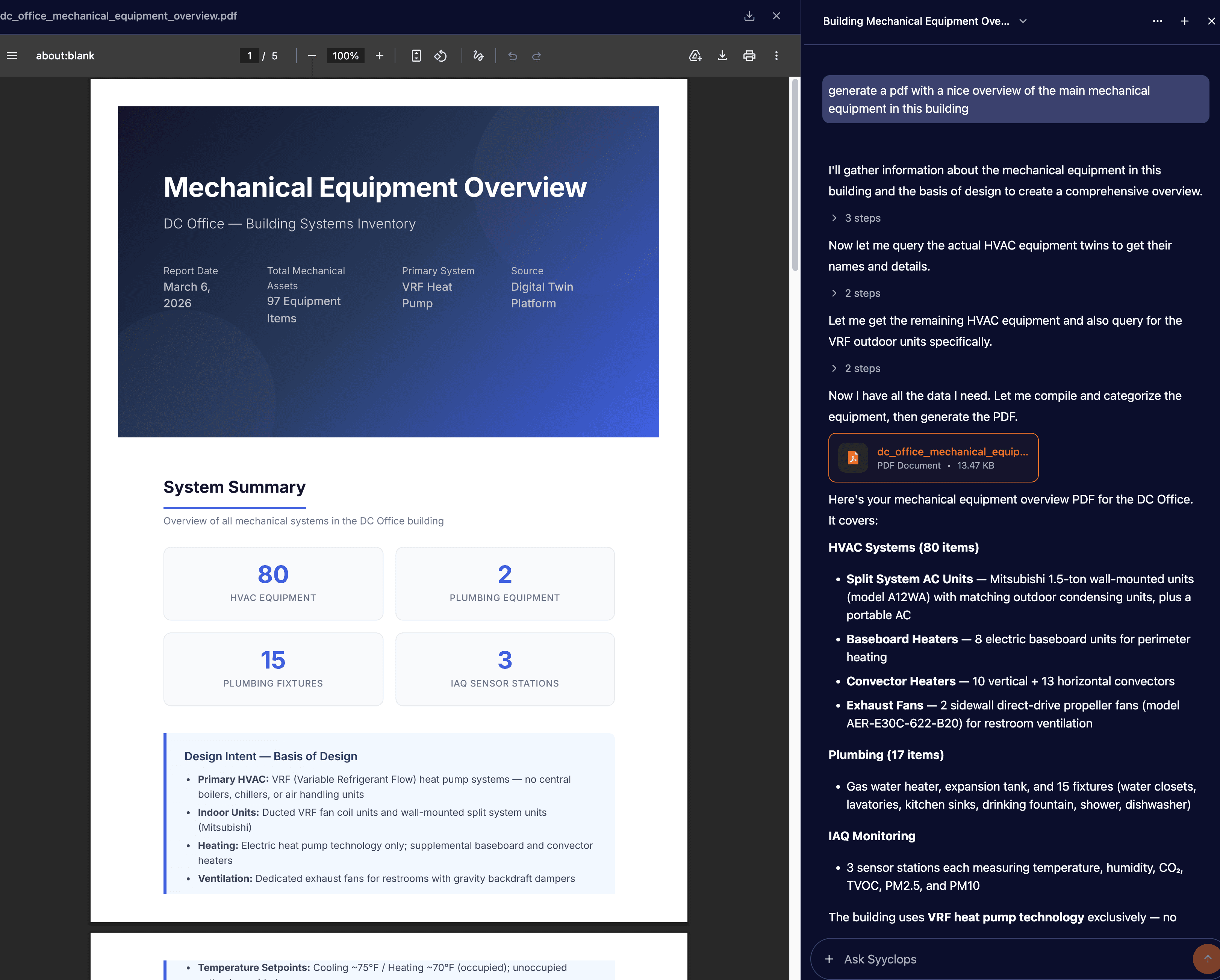
The AI Engineer now has the ability to create PDF and Excel files.
Cross-Building Shared Twins
Organization-wide entities (Departments, Companies, Persons) can now be shared across all buildings instead of being scoped to a single building.
Building Properties Management
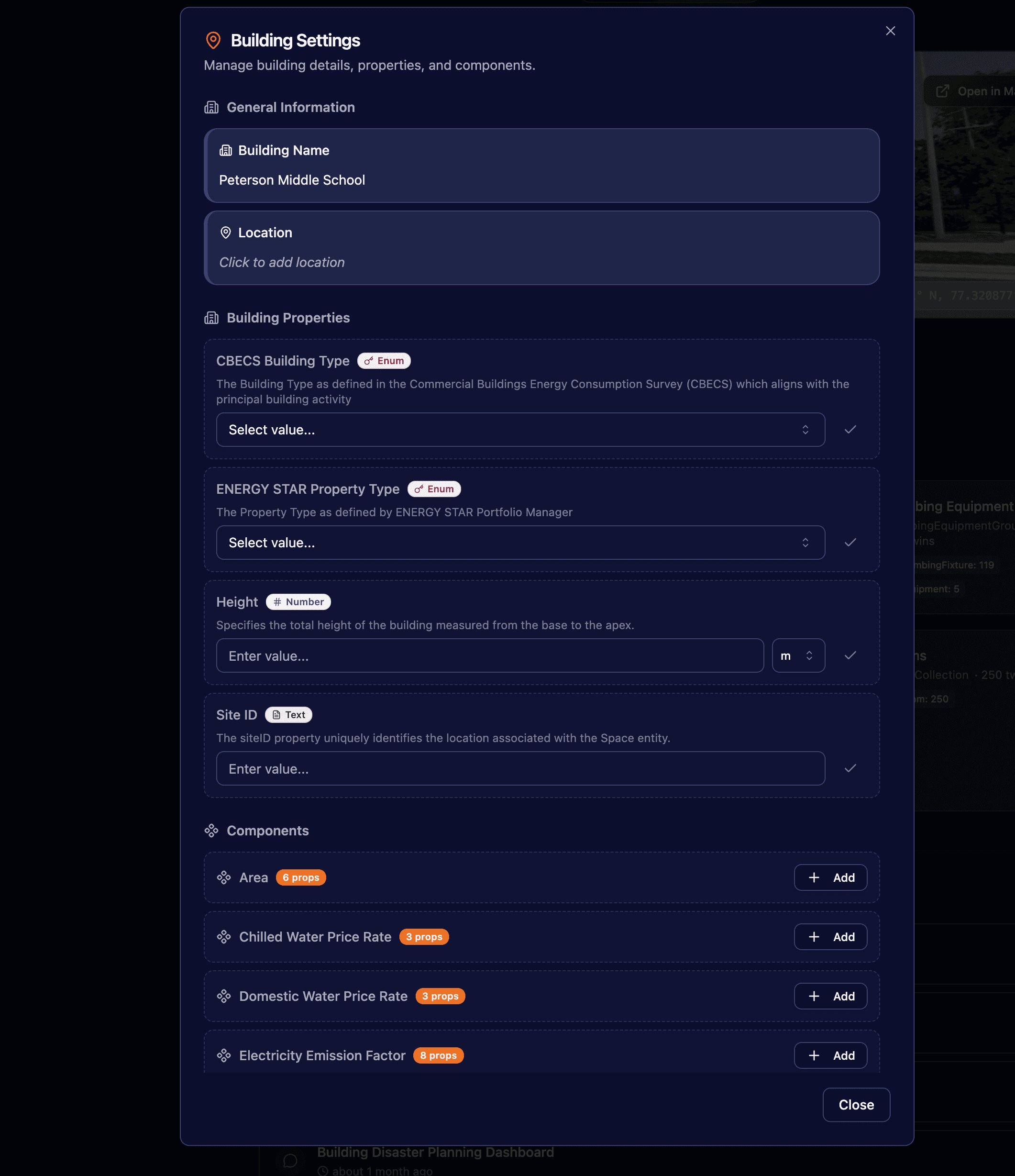
Manage building configuration properties (area, occupancy, energy rates) in a dedicated settings interface with organized sections.
Navigate to the Building, select Document mode, and click the edit button.
Delete Twin Properties
Users can remove manually-created properties from twins. Provider-owned properties are protected.
Unit Selector for Properties
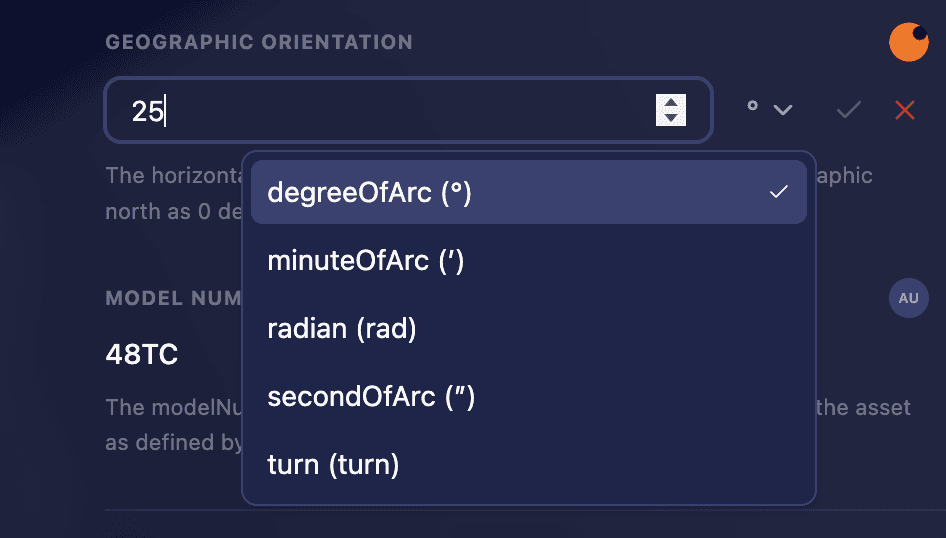
Change measurement units for numeric properties inline (e.g., °C to °F).
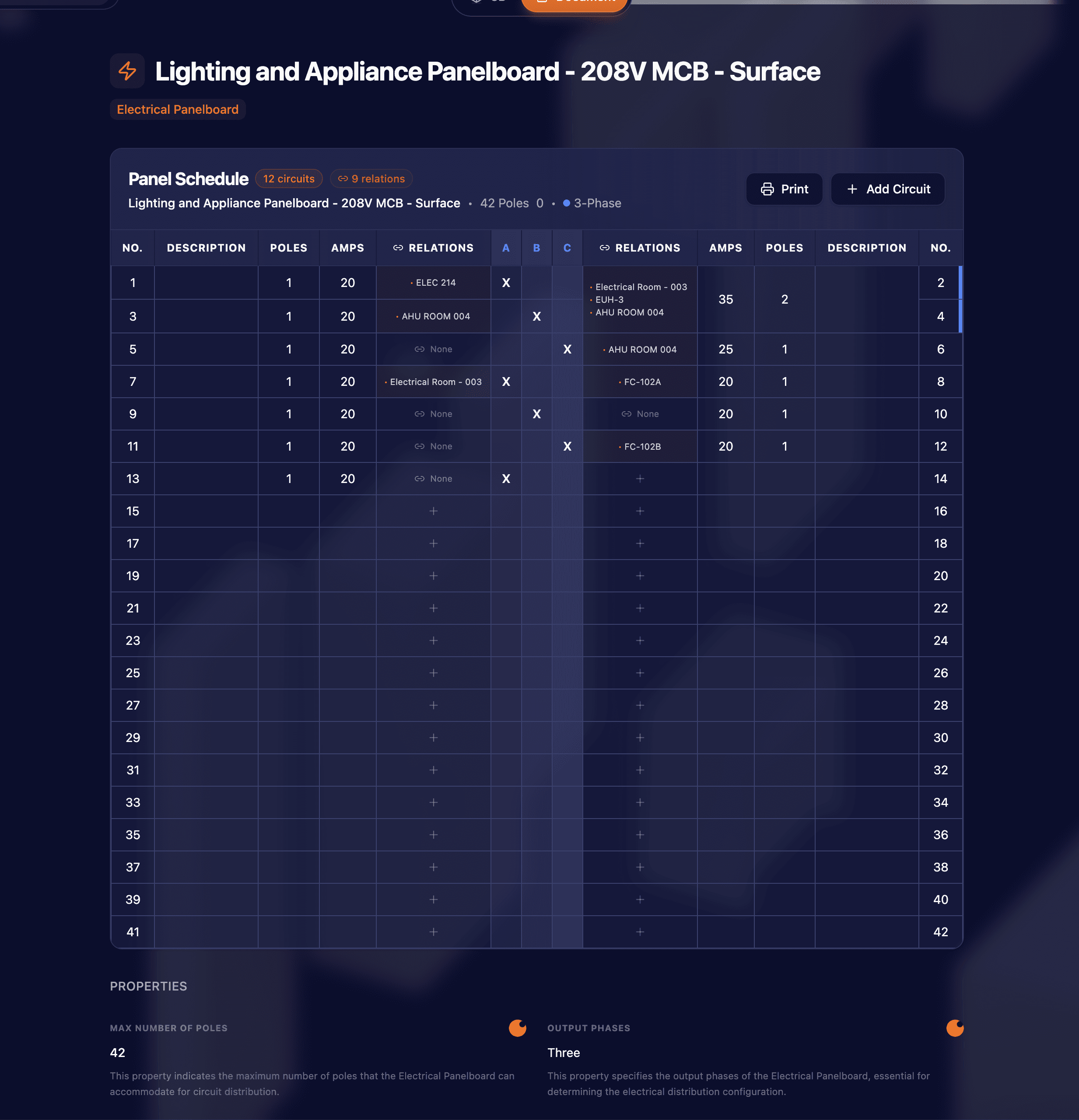
Panelboard Circuit Descriptions
Technicians can document electrical circuit purposes directly in the panelboard panel schedule UI with a new description column.
Tasks for AI Engineer, Audit Logs & Multi-BIM Upload
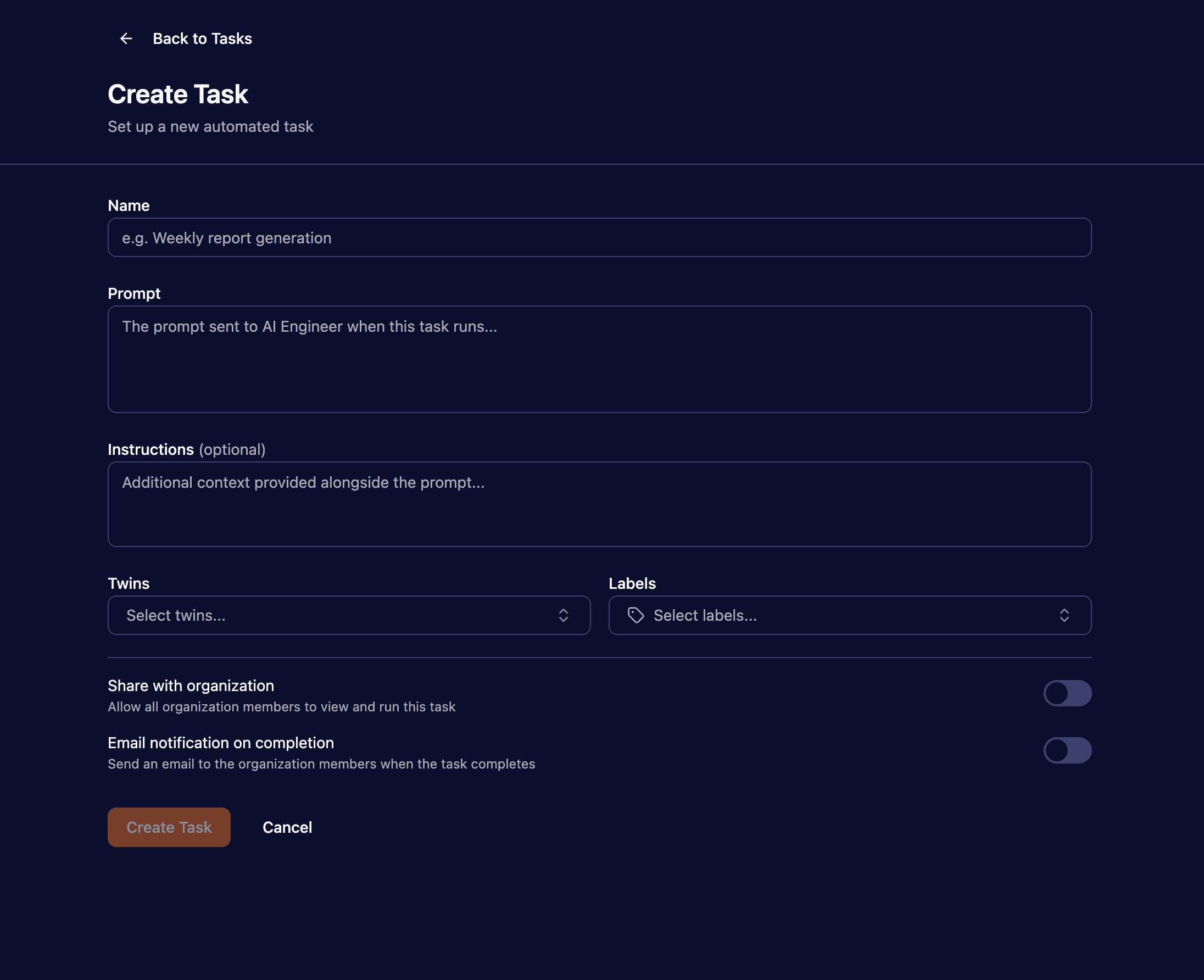
Tasks for AI Engineer
Create and share AI prompts across your organization.
Tasks support twin associations, labels, starring/archiving, email notifications on completion, and a full run history with status tracking.
Shared tasks show creator attribution and allow org-wide collaboration.
Audit Logs
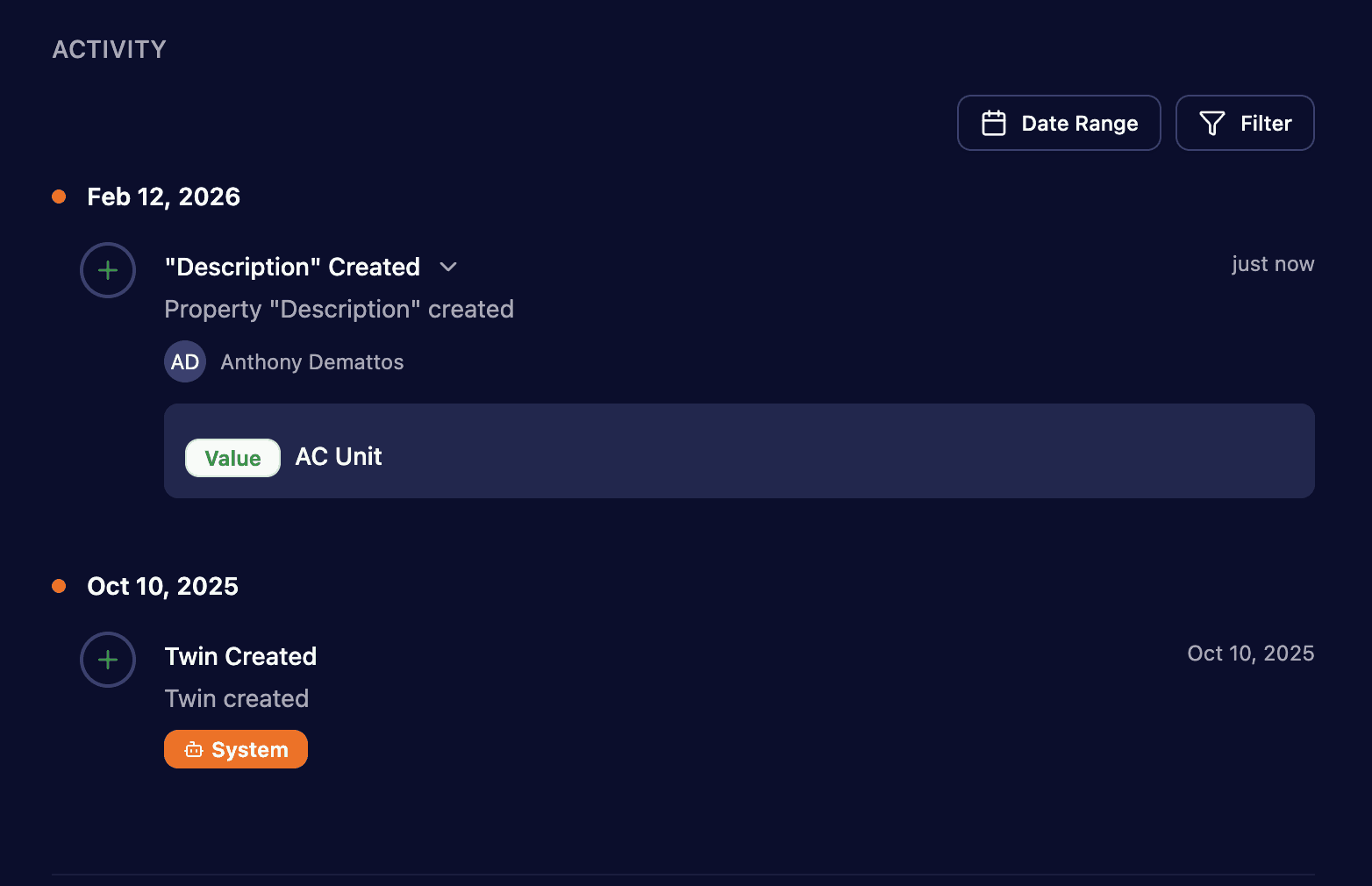
A complete activity trail for every significant change to twins, properties, relationships, and lifecycle events.
Covers property modifications, relationships, file uploads, classification changes, status changes, data source switches, merges, and bulk operations.
Multi-BIM Upload
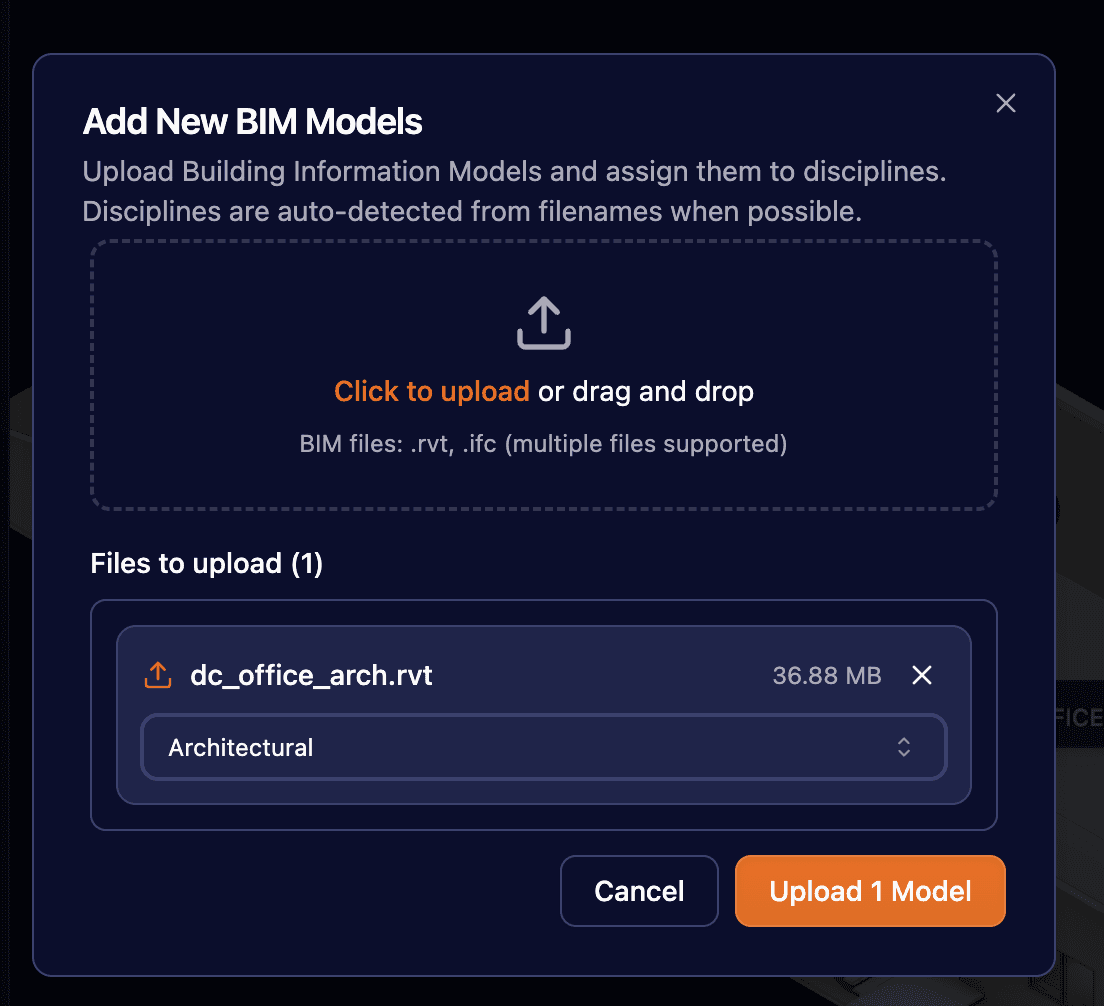
Upload multiple BIM design models simultaneously with automatic discipline recognition via pattern matching.
AI Engineer Document Templates
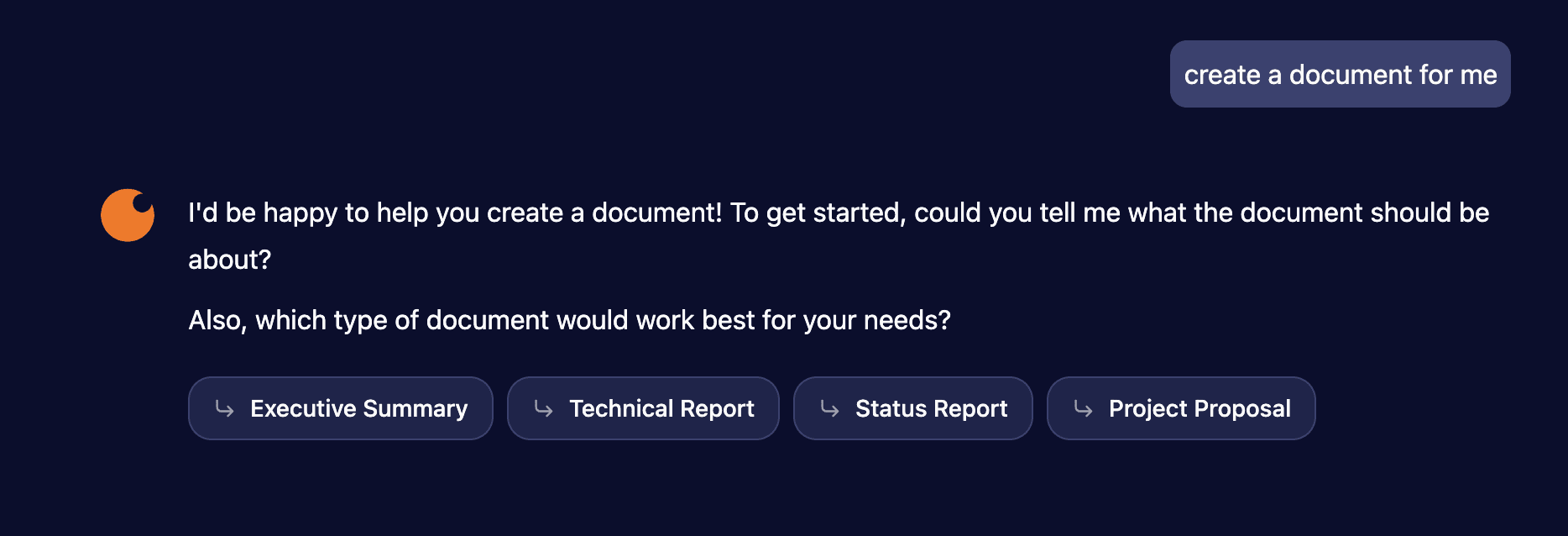
Standardized document generation with 10 templates across 4 categories: business, technical, onboarding, and presentation.
A new suggestions tool presents clickable template options when the document intent is ambiguous, with selection state persisting across page reloads.
AI Engineer Context Compaction
Automatically summarizes conversation context when it approaches token limits, reducing cost while preserving functionality.
A frontend indicator shows when compaction occurs.
AI Engineer File Output Size Reduction
Smaller, more concise AI-generated documents through improved guidelines.
File size is now displayed on file cards and in the file viewer header.
Autosave for Twin Properties
Property fields now auto-save on blur, with Enter to save and Escape to cancel.
Includes inline error handling and loading indicators. Boolean toggle fields save immediately on click.
Design Model Sync
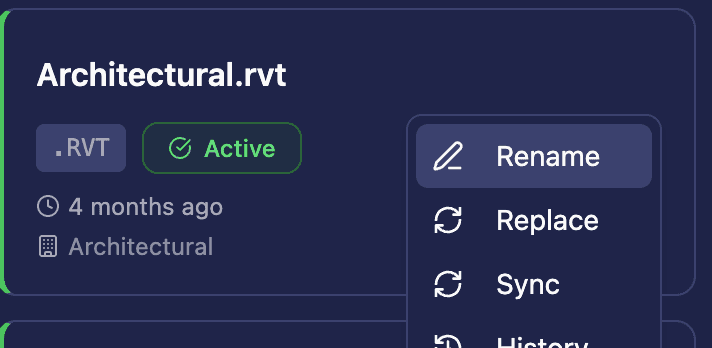
Sync individual Autodesk design models without a full re-upload.
Useful for pulling in new data (e.g., newly added plumbing types) to existing production models.
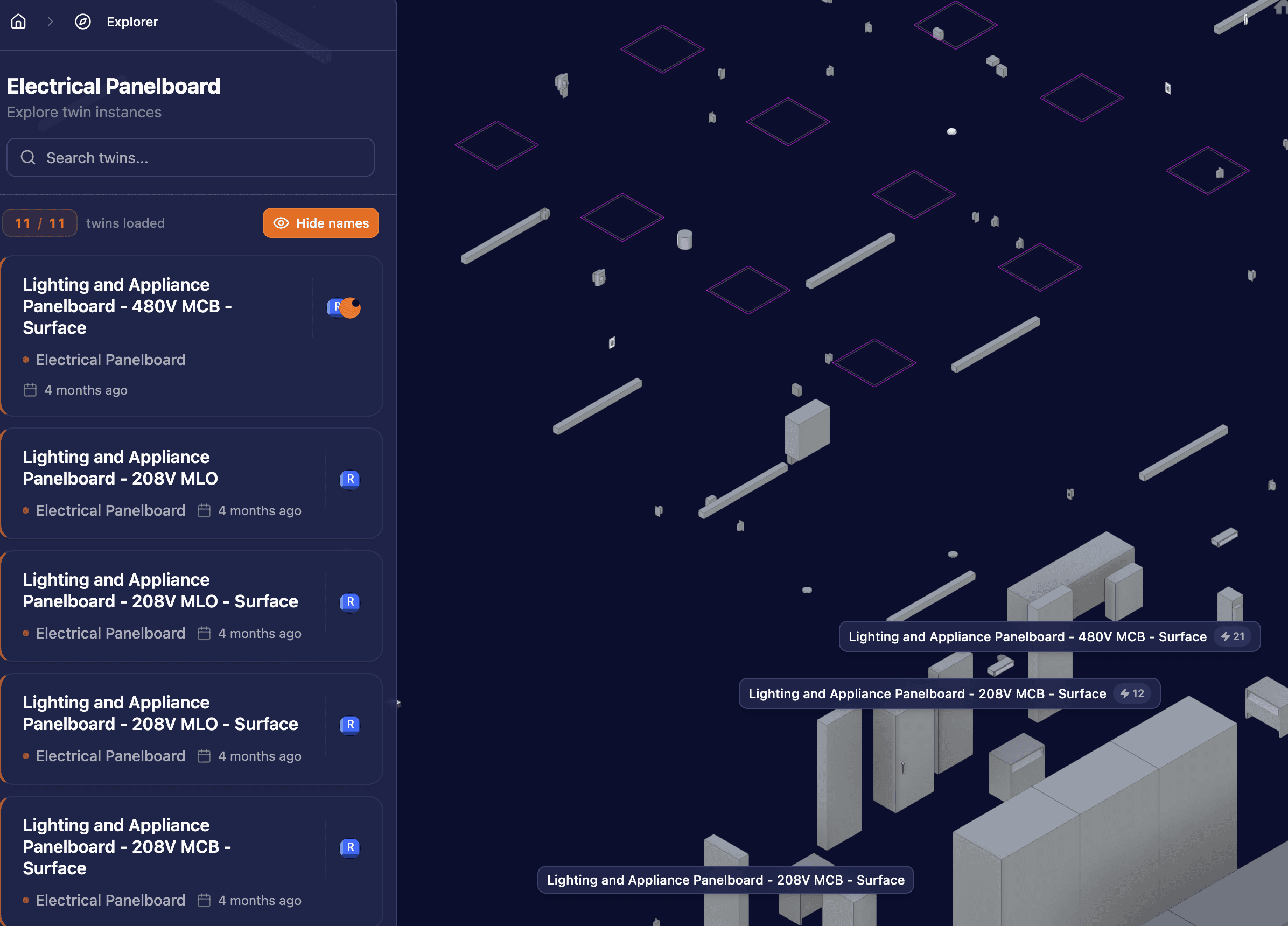
Electrical Panelboard Circuit Count Badges
Circuit count badges now appear on electrical panelboard viewables in the Autodesk viewer.
Twin Status in Manage Twins
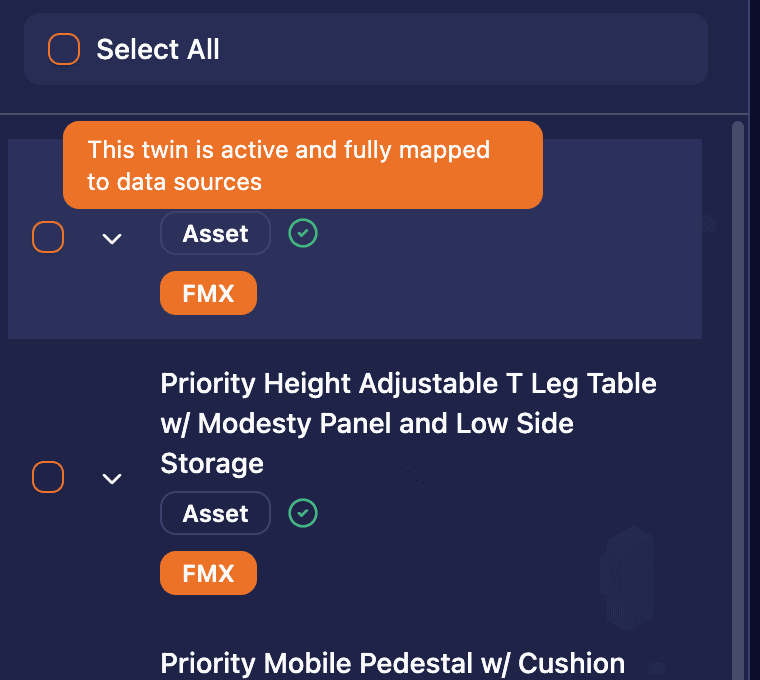
Each twin on the Manage Twins page now displays its status.
Consolidated Model Viewer, Twin Document Page & Librarian Sub-Agent
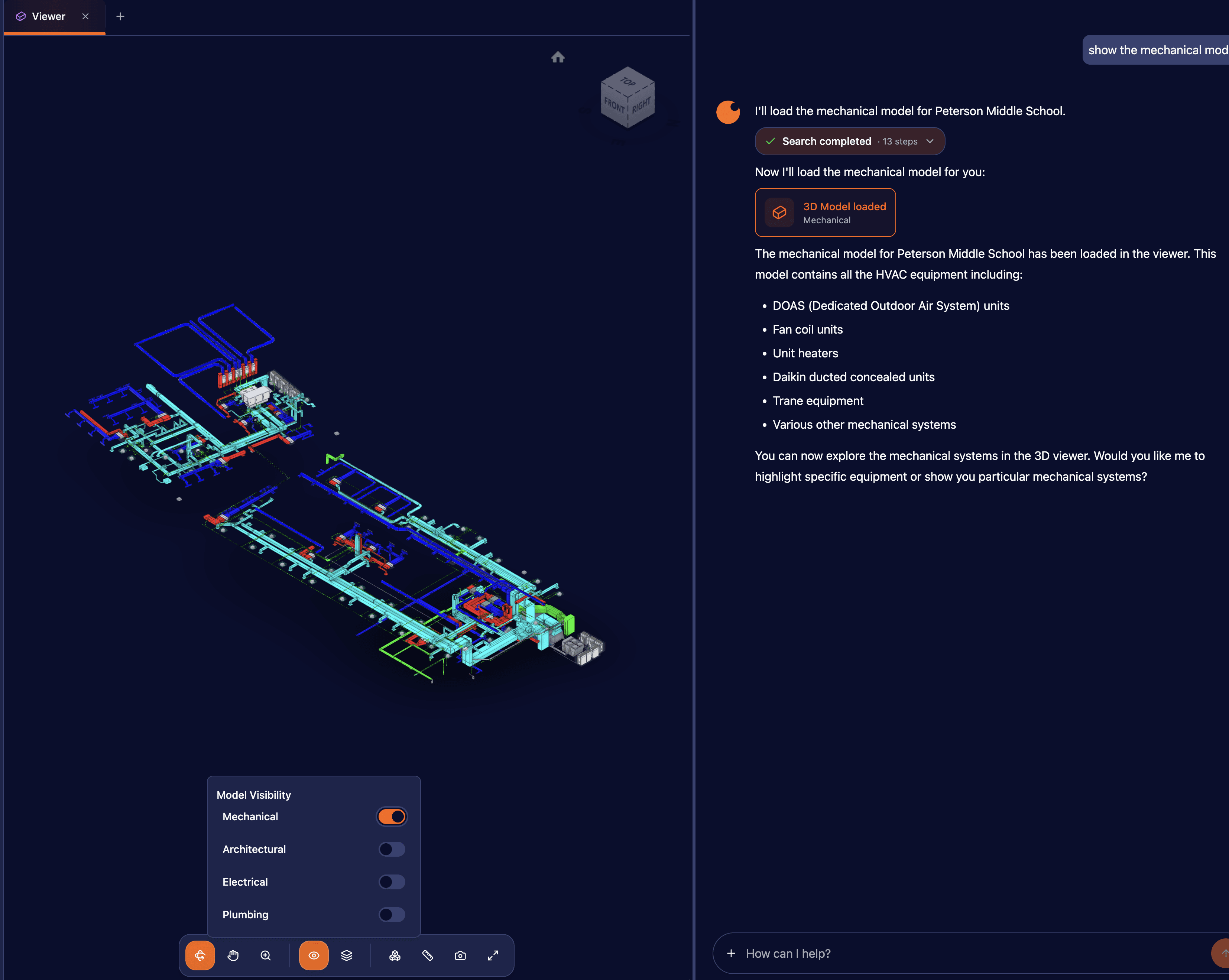
Consolidated 3D Model Viewer
Combined multiple model viewer tabs into a single unified viewer with toolbar controls.
Supports public thread sharing and model highlighting from chat.
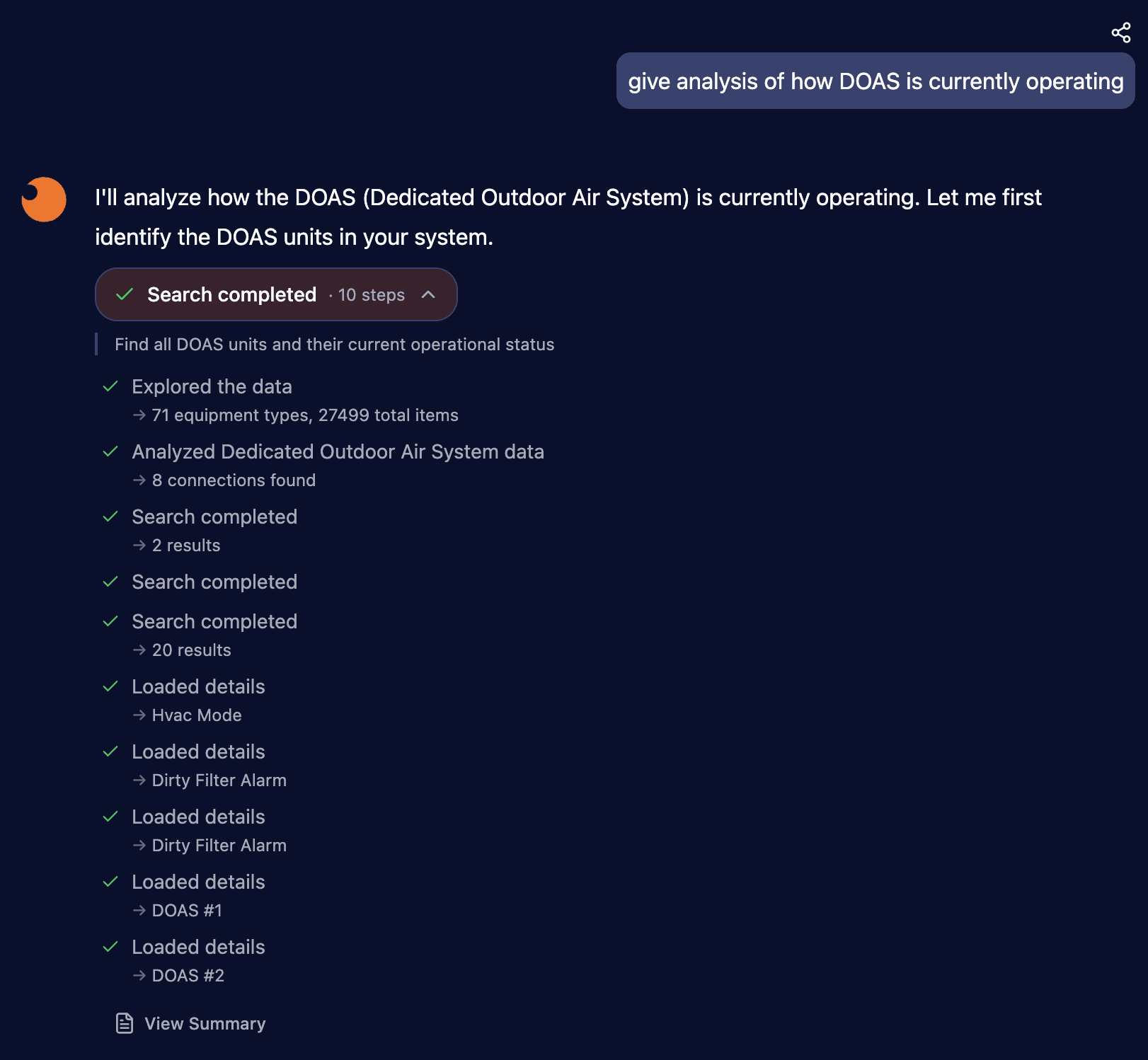
Librarian Sub-Agent
Refactored the librarian tool from a single call to a multi-step sub-agent with animated progress indicators.
Provides more reliable query generation and comprehensive answers from multiple data sources.
This resolves the "Error not found" that kept appearing. Results may take a bit longer but should be more accurate.
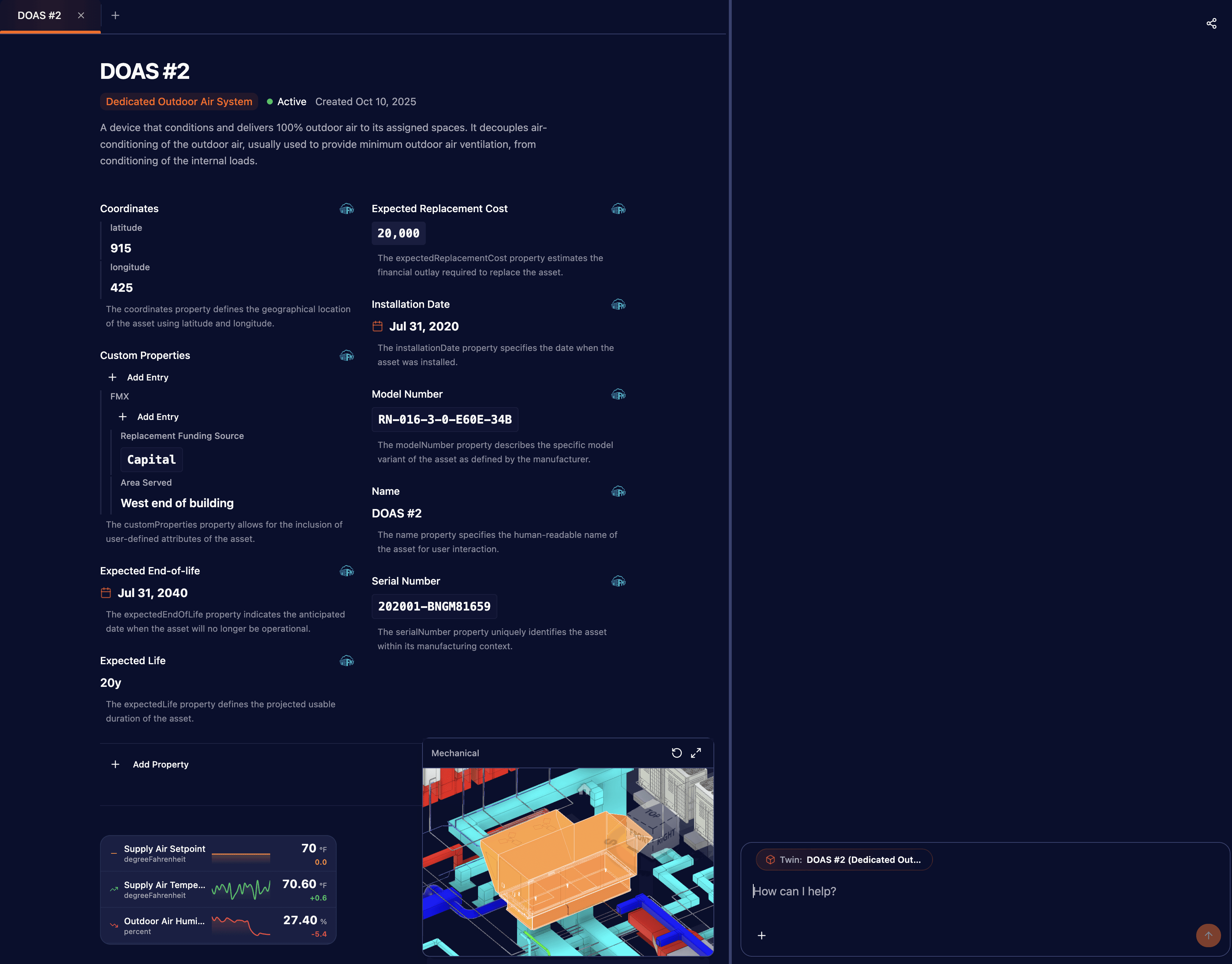
Twin Document Page
Clicking a twin from AI search results now opens a detailed twin view in a tabbed side panel.
View and edit properties, relationships, files, telemetry, and activity without leaving the chat.
This consolidates the AI chat and the twin details together.
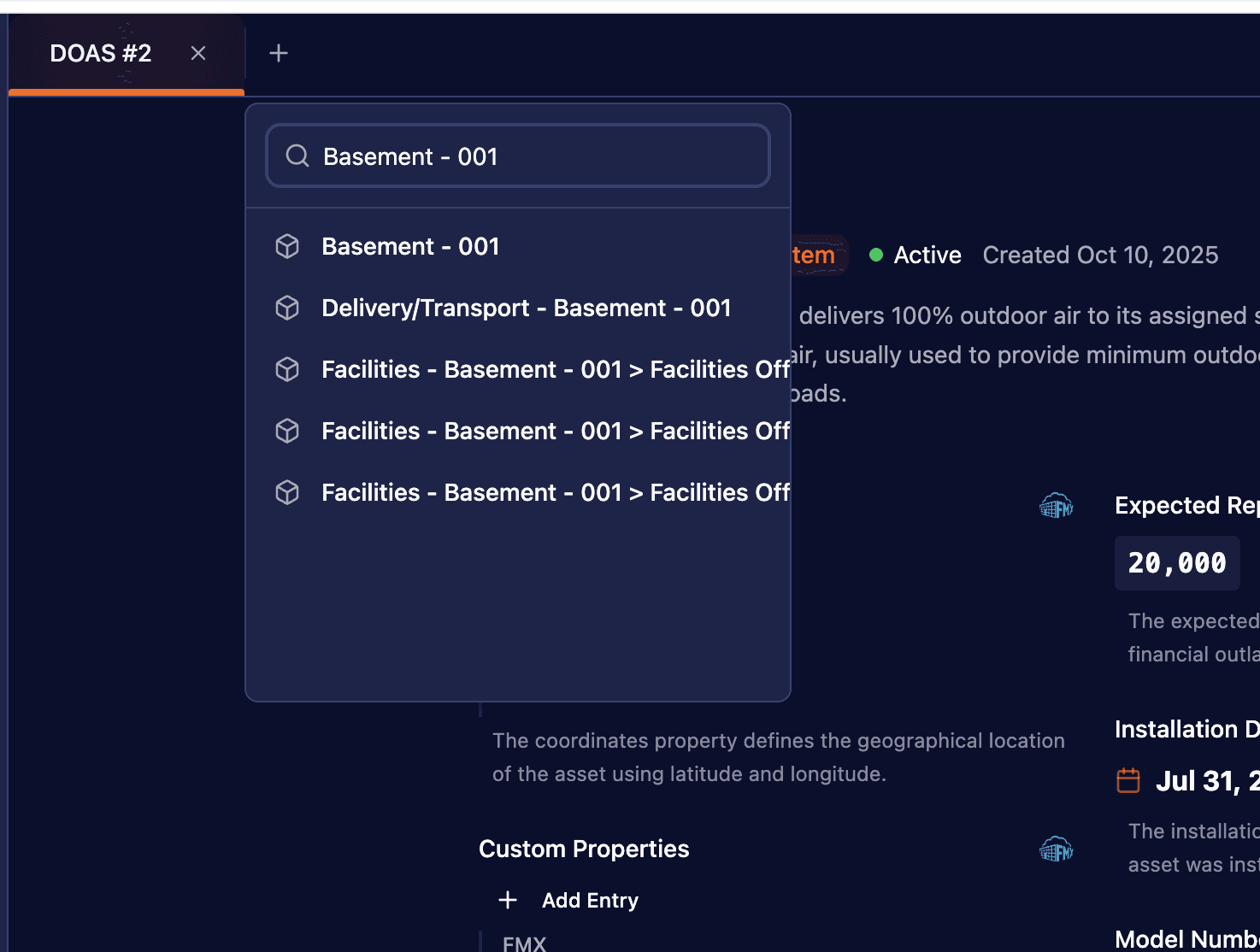
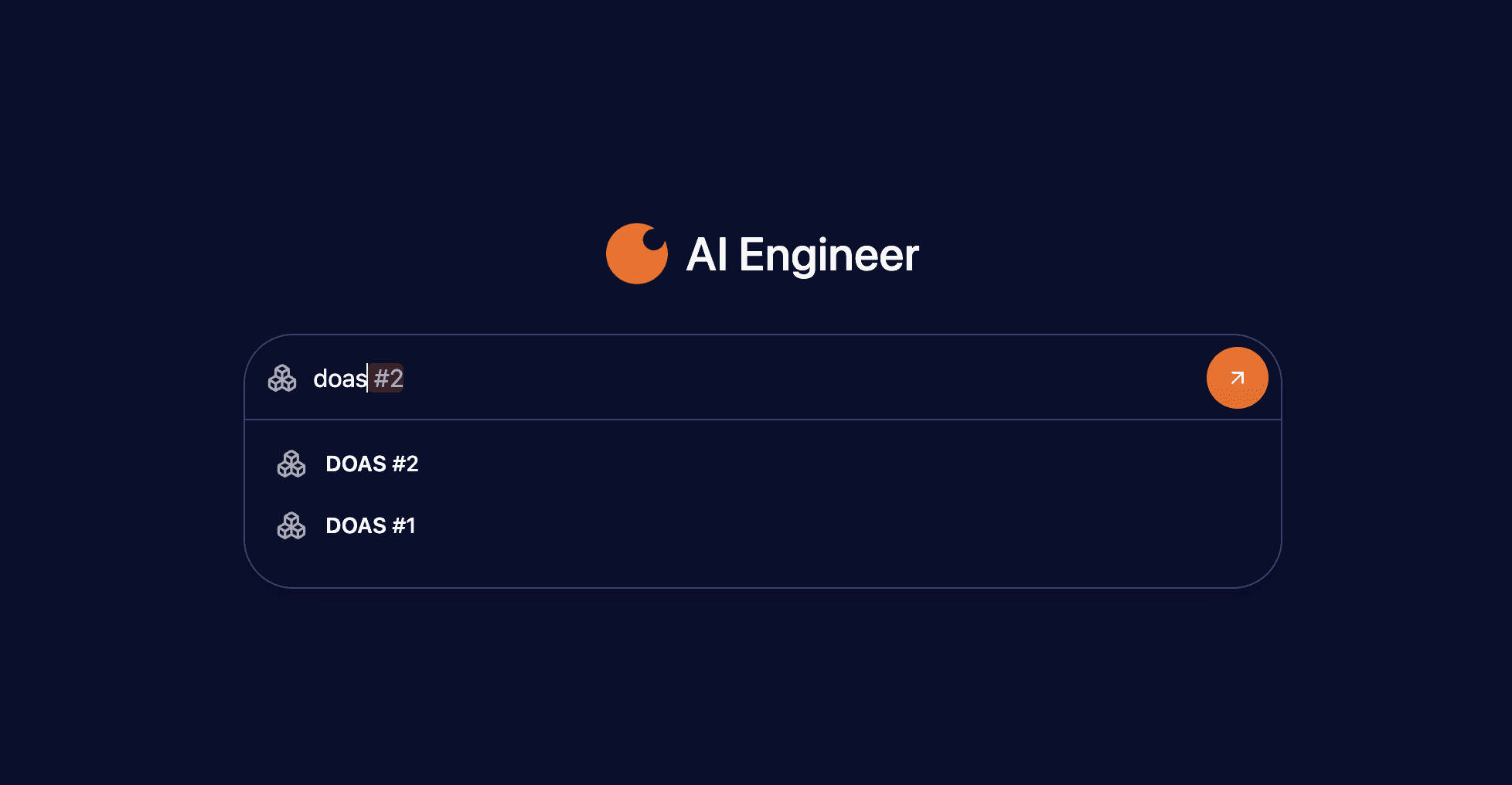
User flow: Search for an asset in the AI engineer input (e.g., "DOAS 2"), select the search suggestion, and see the tag open so you can begin chatting with that asset.
Twin Viewables
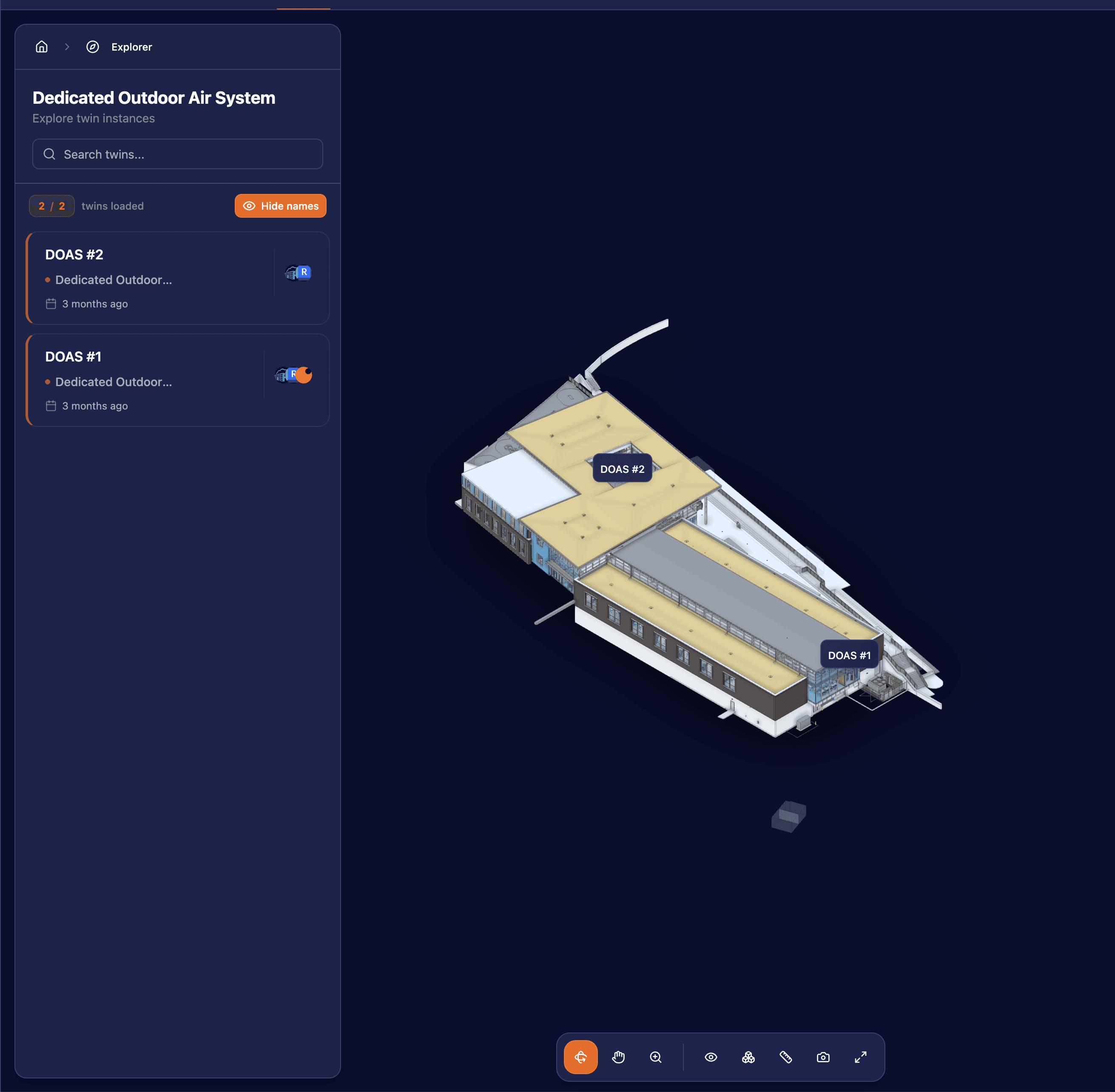
You can now see twin name viewables when navigating through any explorer interface type.
App Version Display
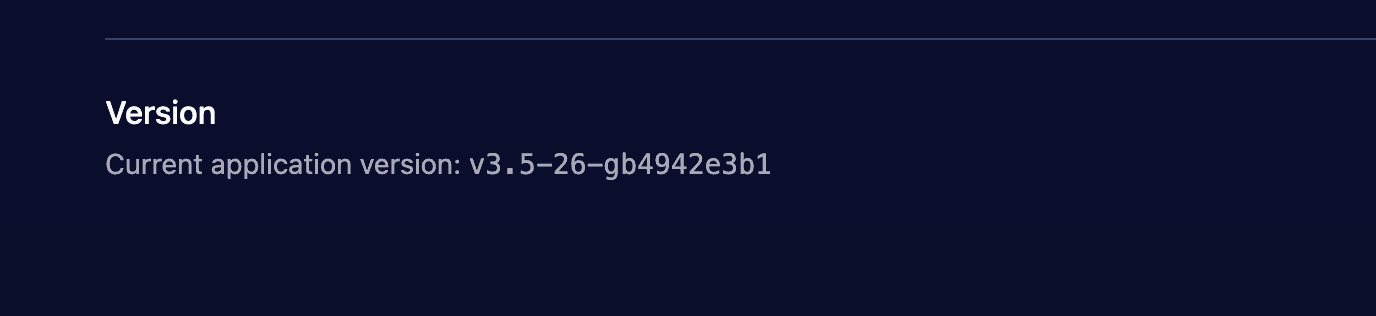
Version number is now shown in the Settings page so you can easily see which version you're running.
Global Search, Unified Twins Management & Matterport Viewer
Global Search
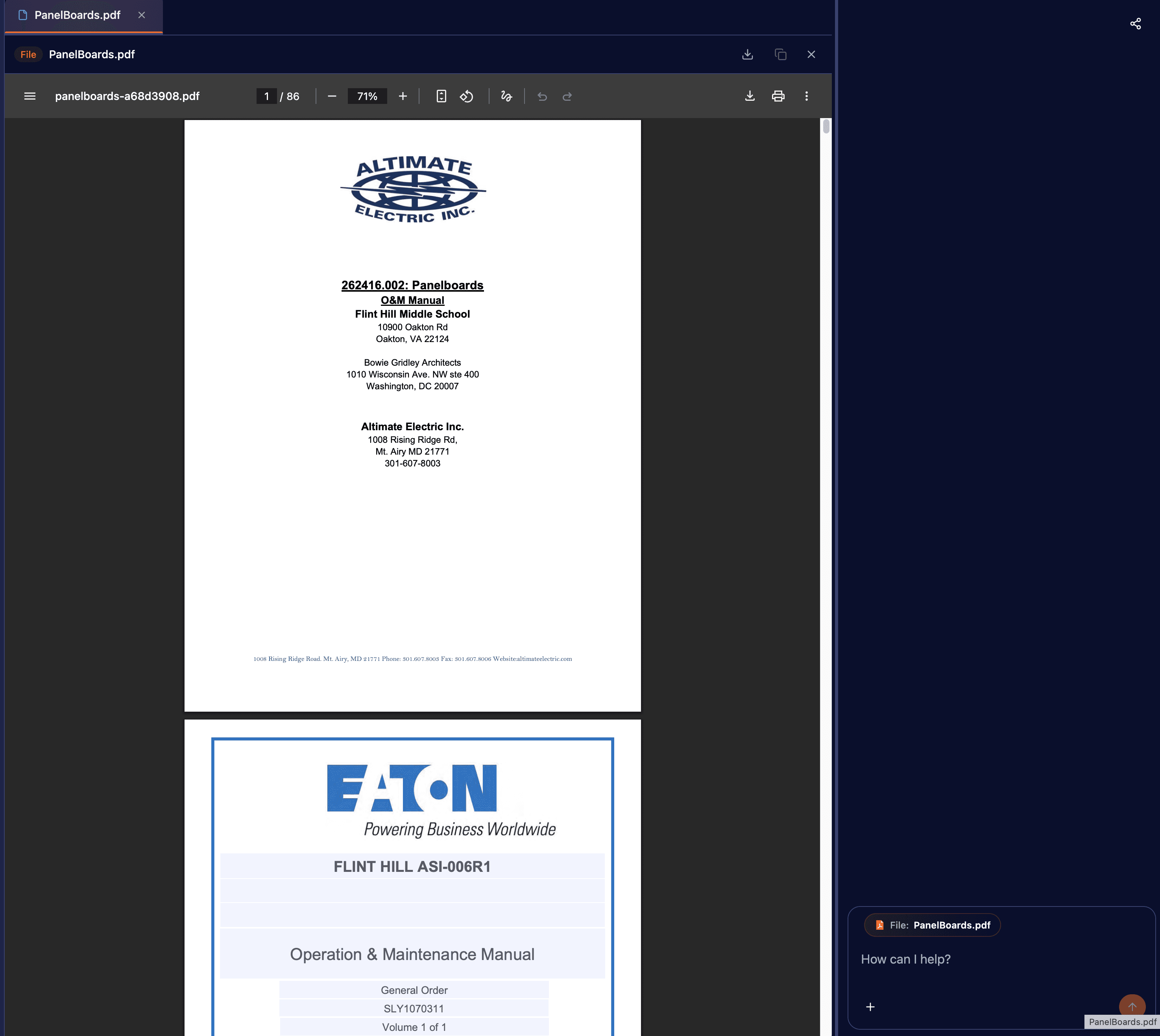
Search directly in the AI chat bar for instant file and asset navigation.
Instead of manually traversing the explorer tree, search by name to jump straight to any asset.
Selecting a file opens it with the AI chat sidebar ready so you can begin chatting with the file.
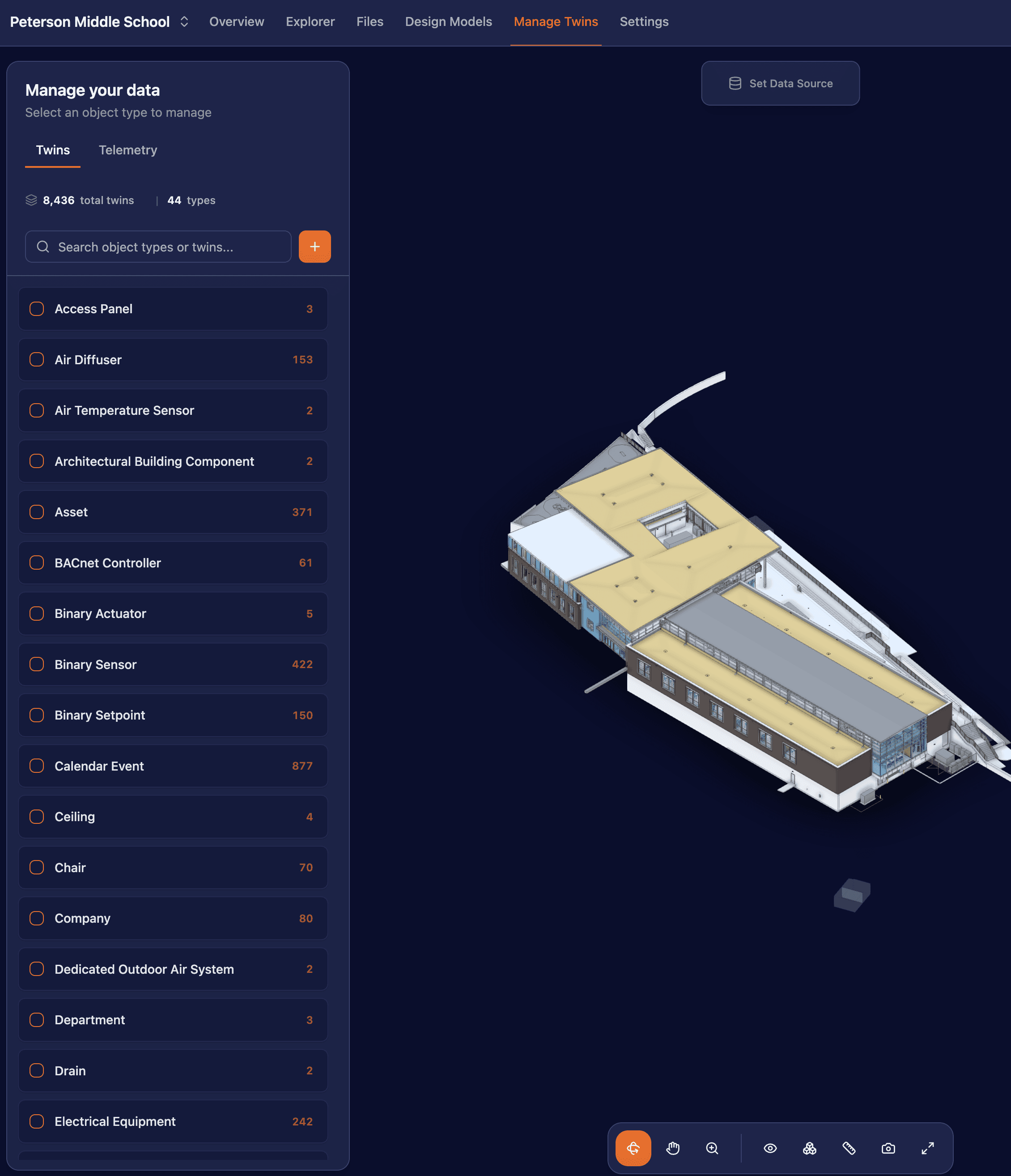
Unified Twins Management Interface
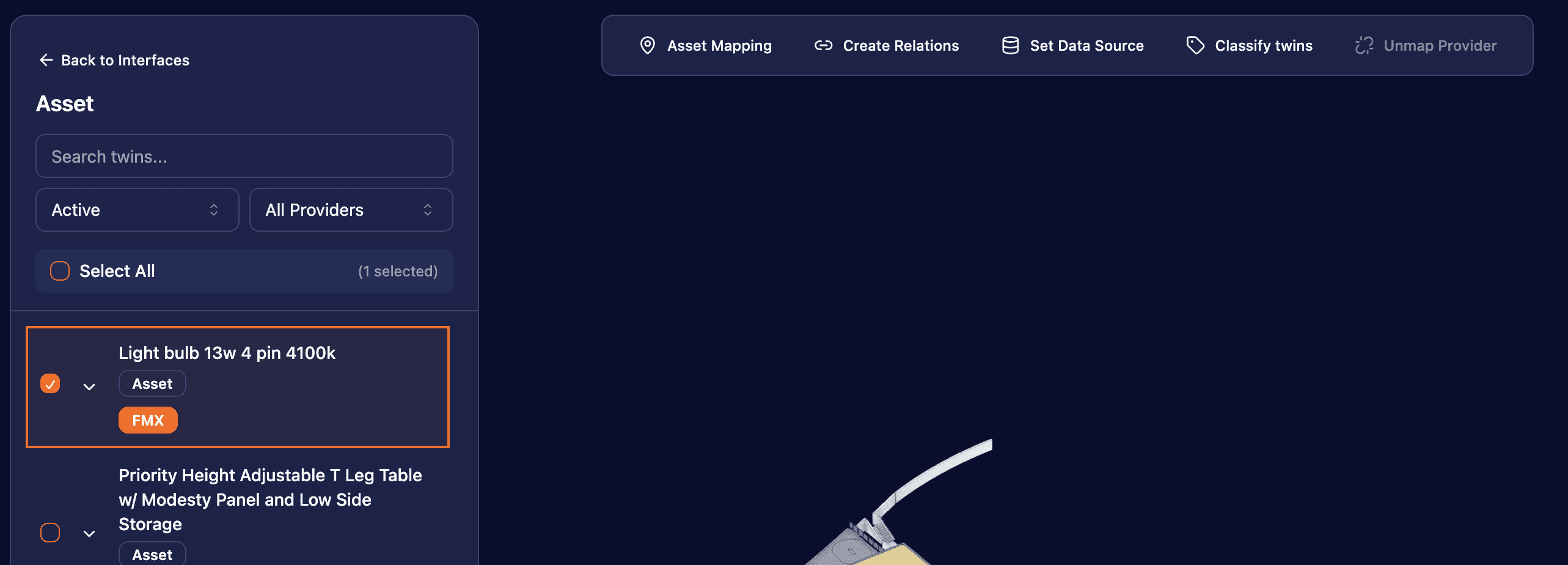
Redesigned twins management with a streamlined three-panel layout: left tabs (twins/telemetries), center action bar, and right details panel.
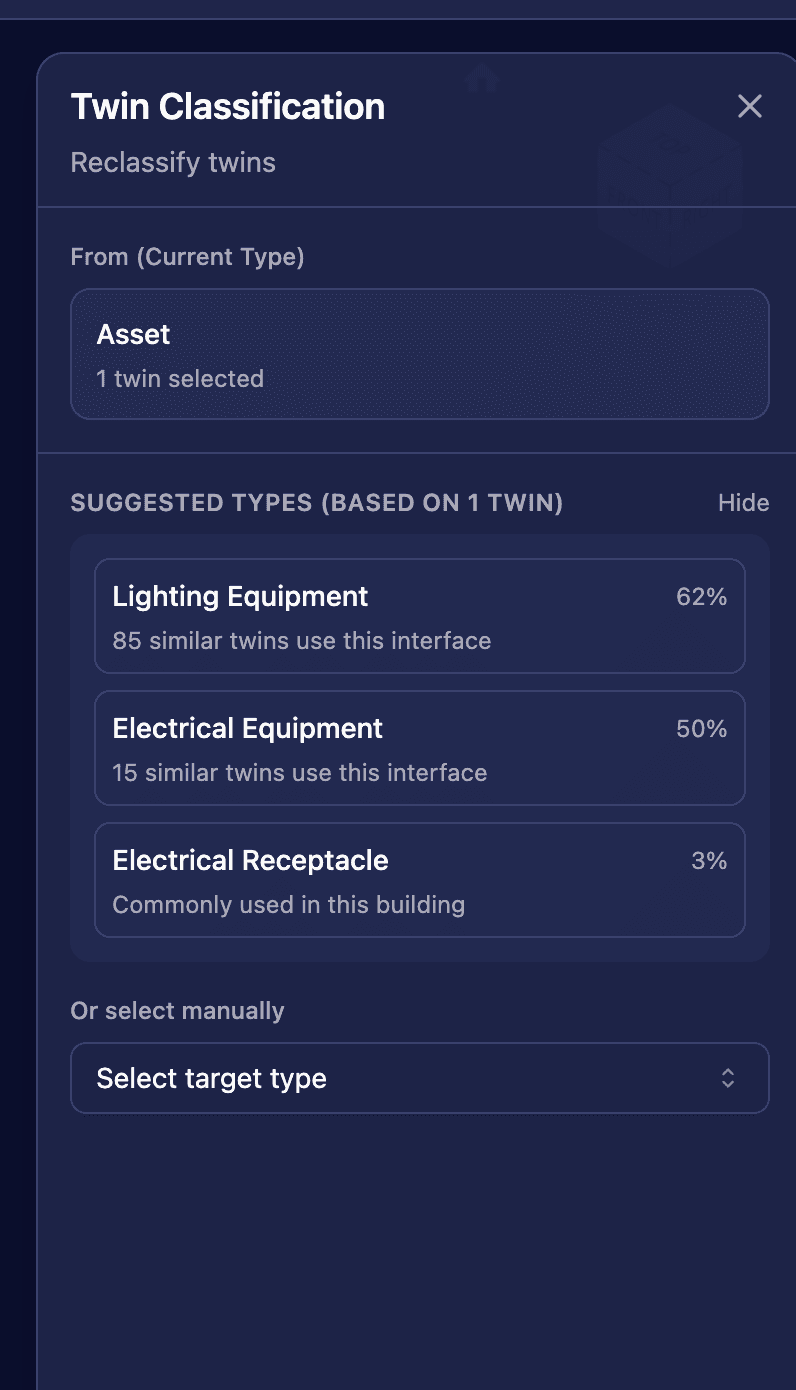
Consolidates previously scattered functionality into one focused interface with bulk operations and intelligent classification suggestions.
Matterport Viewer
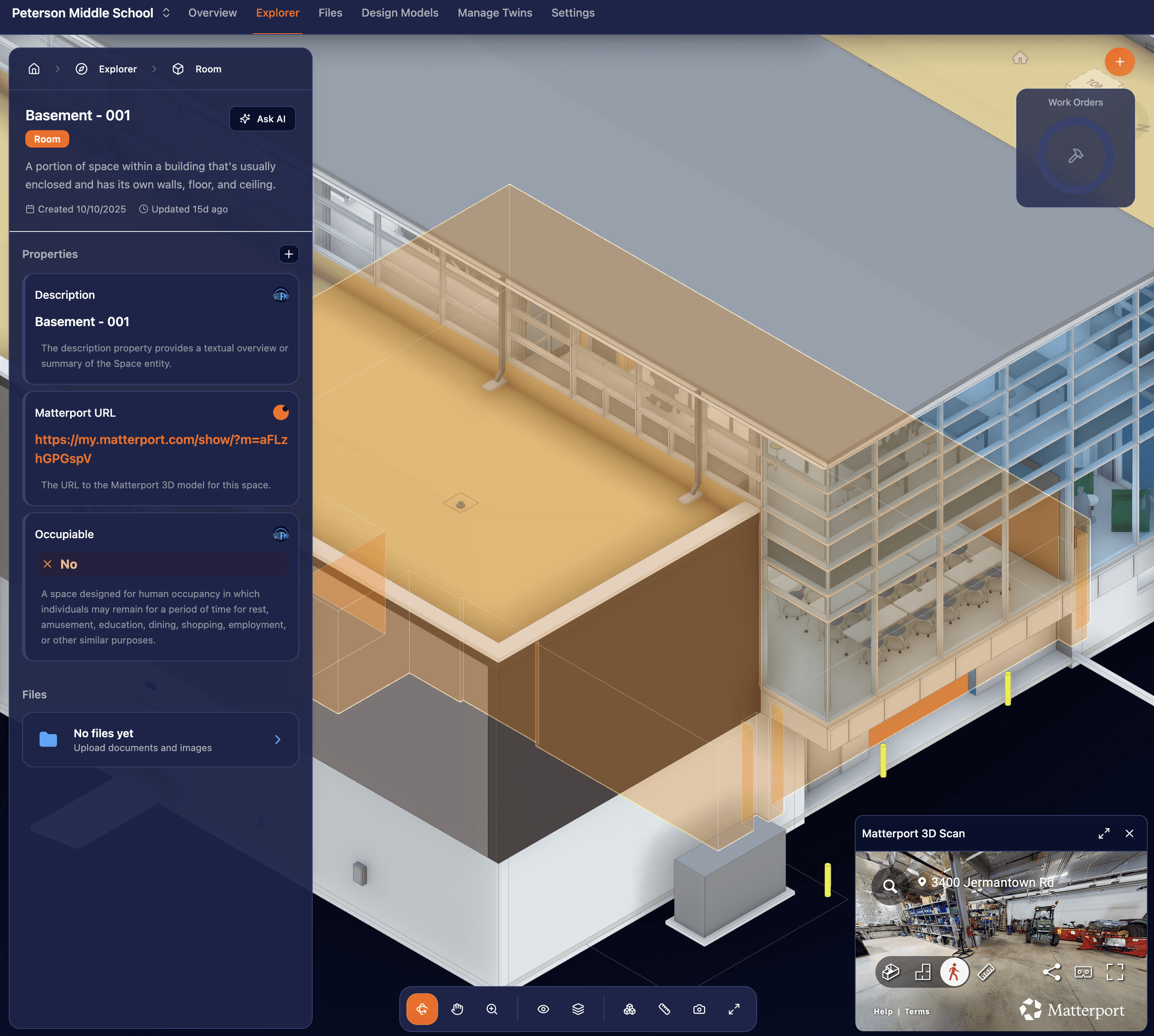
Embedded Matterport viewer appears after clicking a Matterport URL property on a space.
Provides immersive 3D context alongside the digital twin interface.
Room Viewables
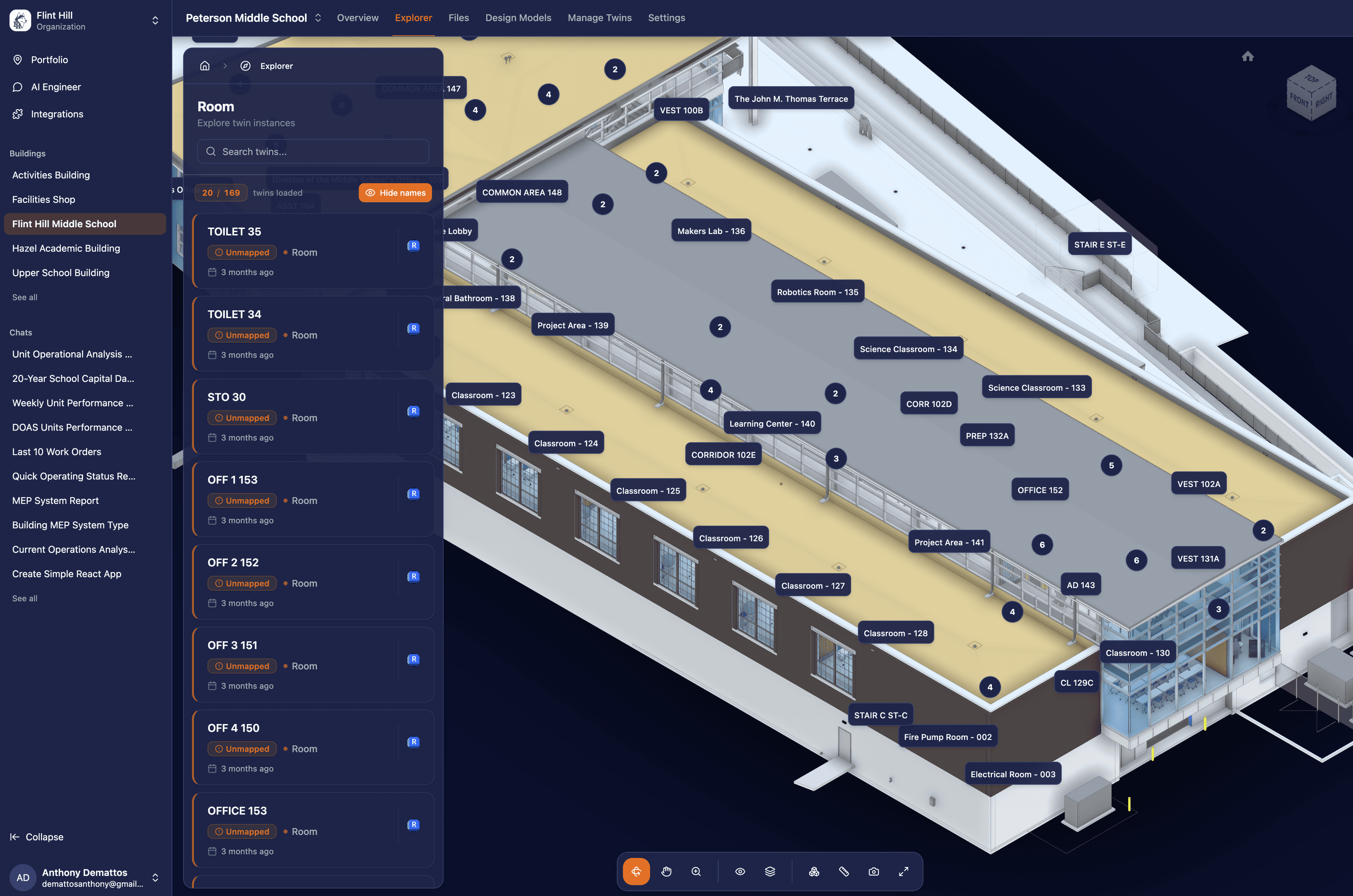
Room names now display as spatial clusters directly on the 3D model when browsing the Room category.
This enables visual navigation without memorizing exact room names.
Interface Classification Tree
New hierarchical interface tree navigation system for twin classification, replacing the paginated list.
Includes automatic telemetry remapping when classifying twins to new interfaces.
AI Feedback, Improved Mini Apps & Syyclops Query Language
AI Engineer Message Feedback
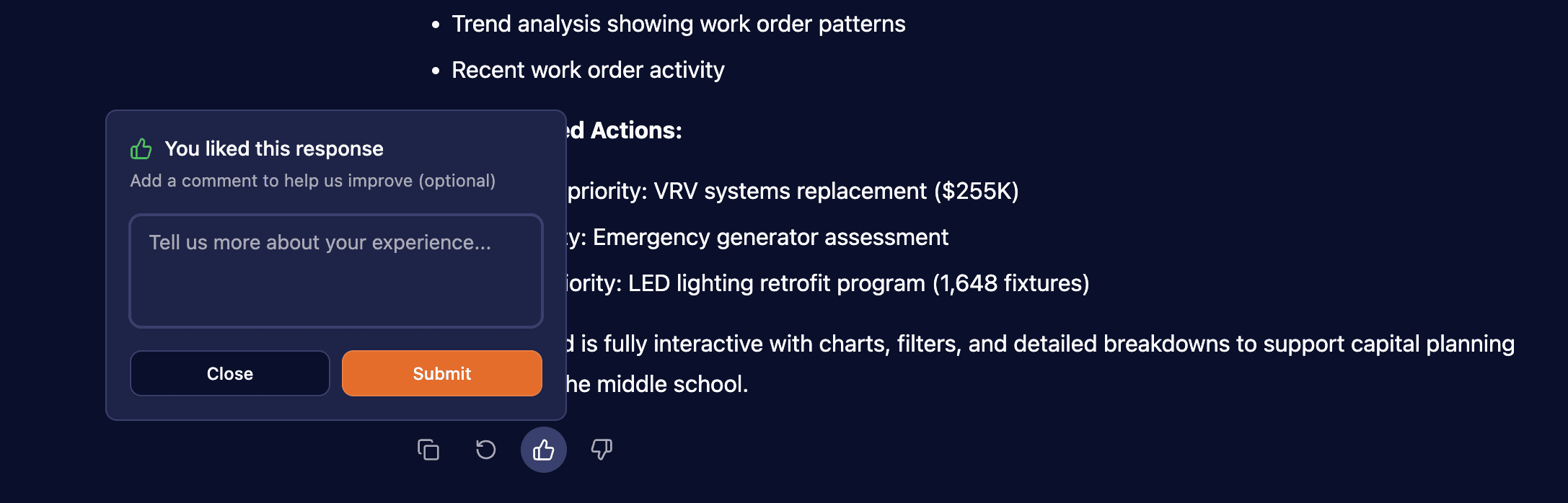
You can now provide feedback on AI-generated chat messages using thumbs up and down buttons, followed by optional text input.
This helps us continuously improve the AI Engineer's responses.
Improved AI Mini App Generation
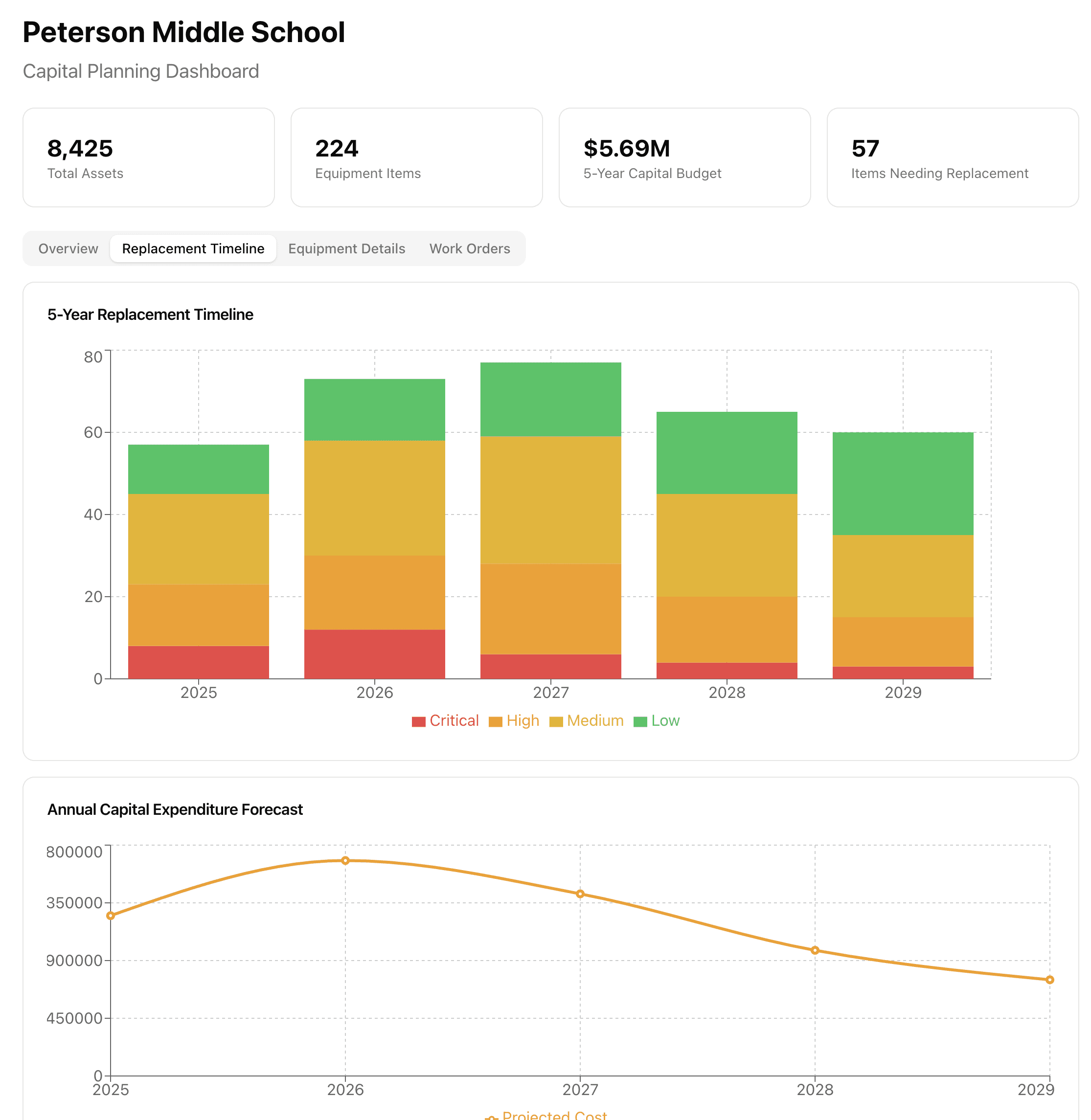
The AI Engineer can now generate full React components instead of plain HTML.
These mini apps can include tabs, buttons, layout, interactivity, and use our shared theme. Charts and visualizations are cleaner and more consistent with the app design.
This moves AI-generated artifacts from static pages to real interactive micro-apps that can be embedded anywhere.
Matterport URL Property for Spaces
Spaces now support a dedicated Matterport URL field to create a clearer link between onsite reality and the digital twin.
This is useful for navigation, validation, and field coordination.

Syyclops Query Language
A native query language built specifically for the Syyclops digital twin graph.
This gives the AI Engineer much more precise control when retrieving graph context, resulting in faster queries and cleaner reasoning.
Electrical Panels, Building Context in AI Chat & Member Invites
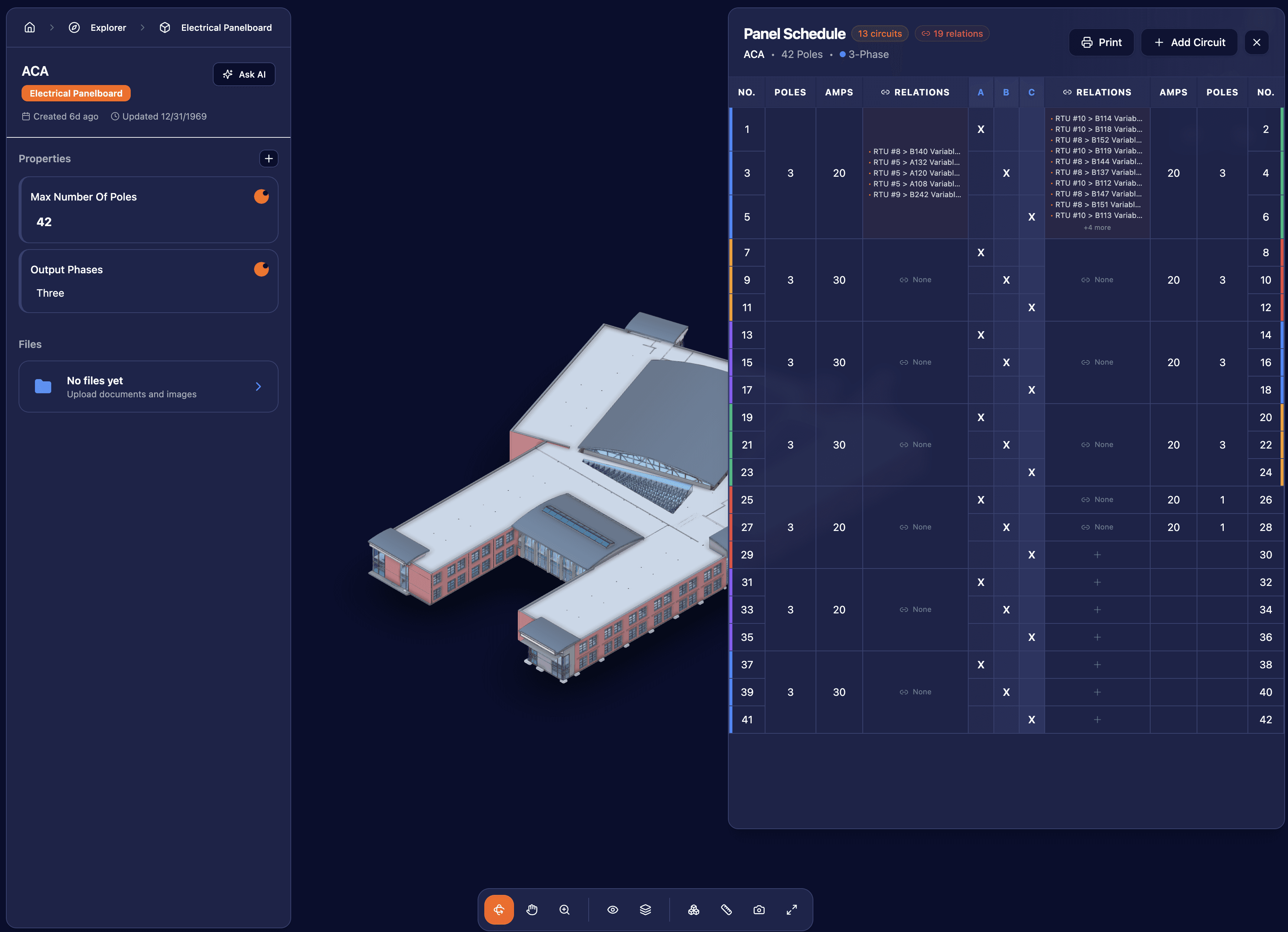
Electrical Panelboard Page
New dedicated twin page for electrical panelboards with specialized views and controls for managing electrical panel data.
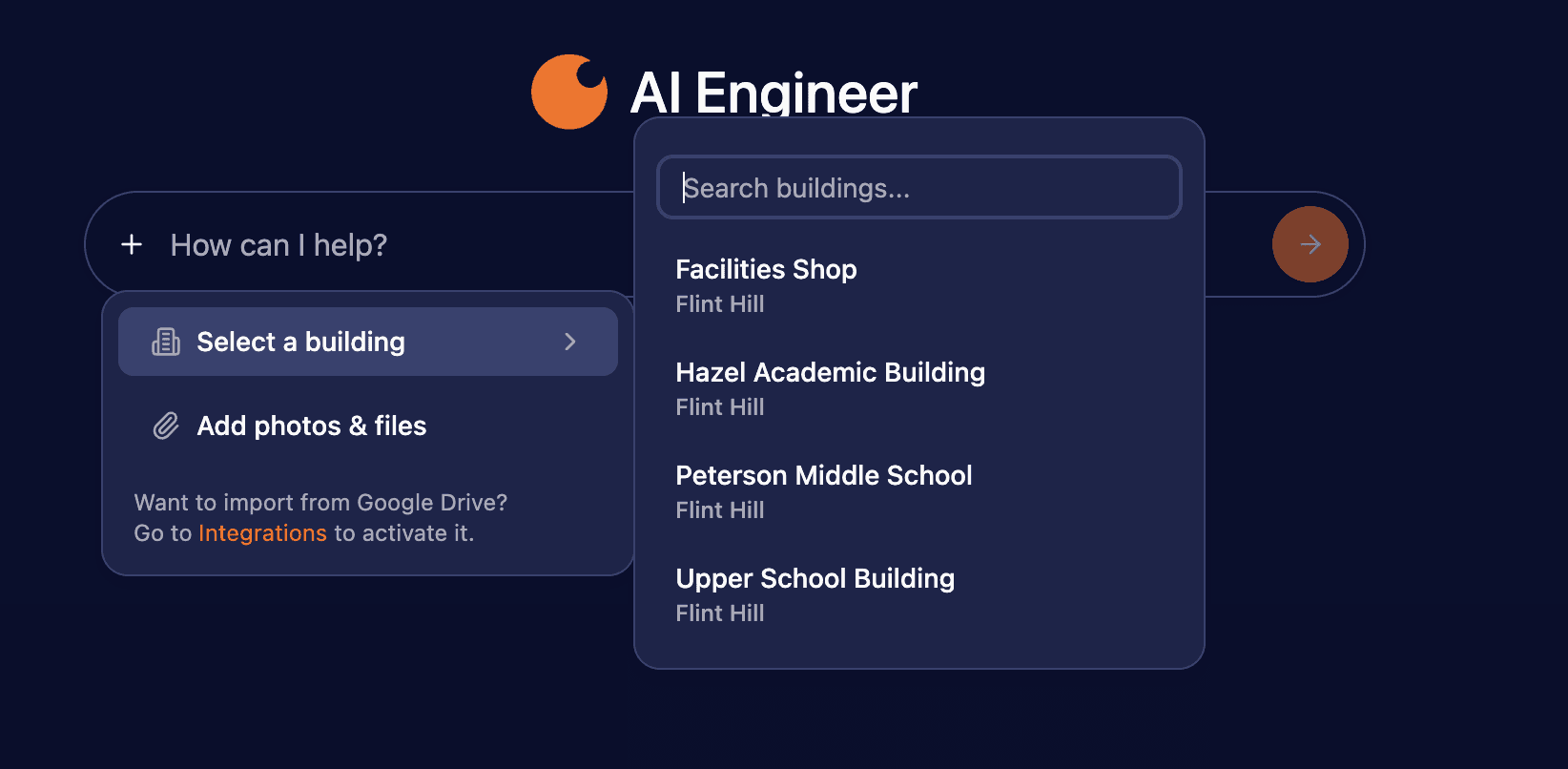
Building Context Selector in AI Chat
In the AI engineer chat you can now select a specific building that you want to chat with.
Click the "+" button to add a building to your conversation context.
External URL Property for Spaces
You can now add a custom property on spaces to import links from outside the platform.
For example, add a Matterport link to a 3D space scan. The platform treats the value as a hyperlink and opens it in a new tab.
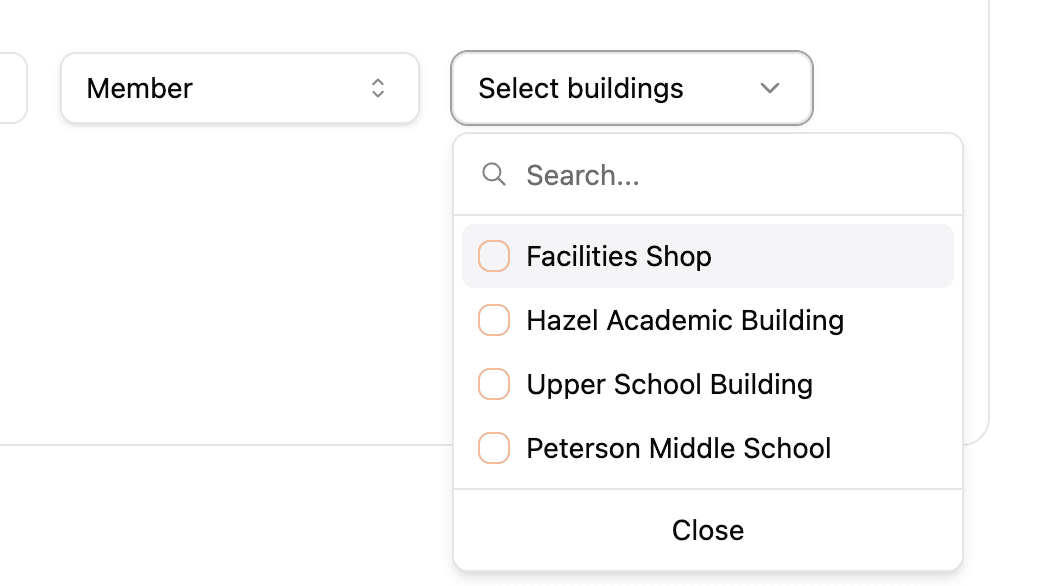
Invite Members with Specific Building Access
When adding a user with the role of "member", you can now specify which buildings they have access to directly in the invite.
Twins Sorting by Property
You can now sort twins by any property column in the twins list view, making it easier to organize and find specific twins.
Simplified AI Model Selection
Removed the AI model selector from the chat interface. The platform now automatically uses the optimal model for each request.
Unit Selection, AI Engineer Improvements & Twin Classification Updates
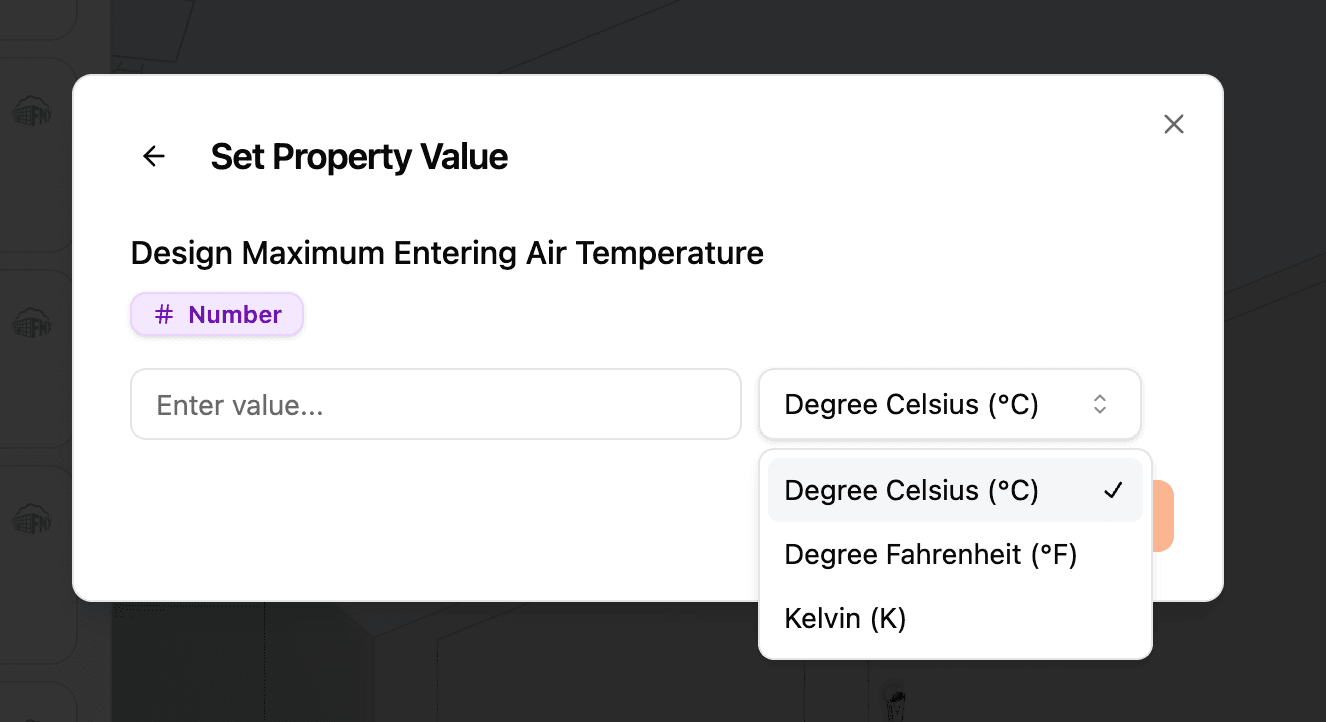
Unit Selection When Adding Properties
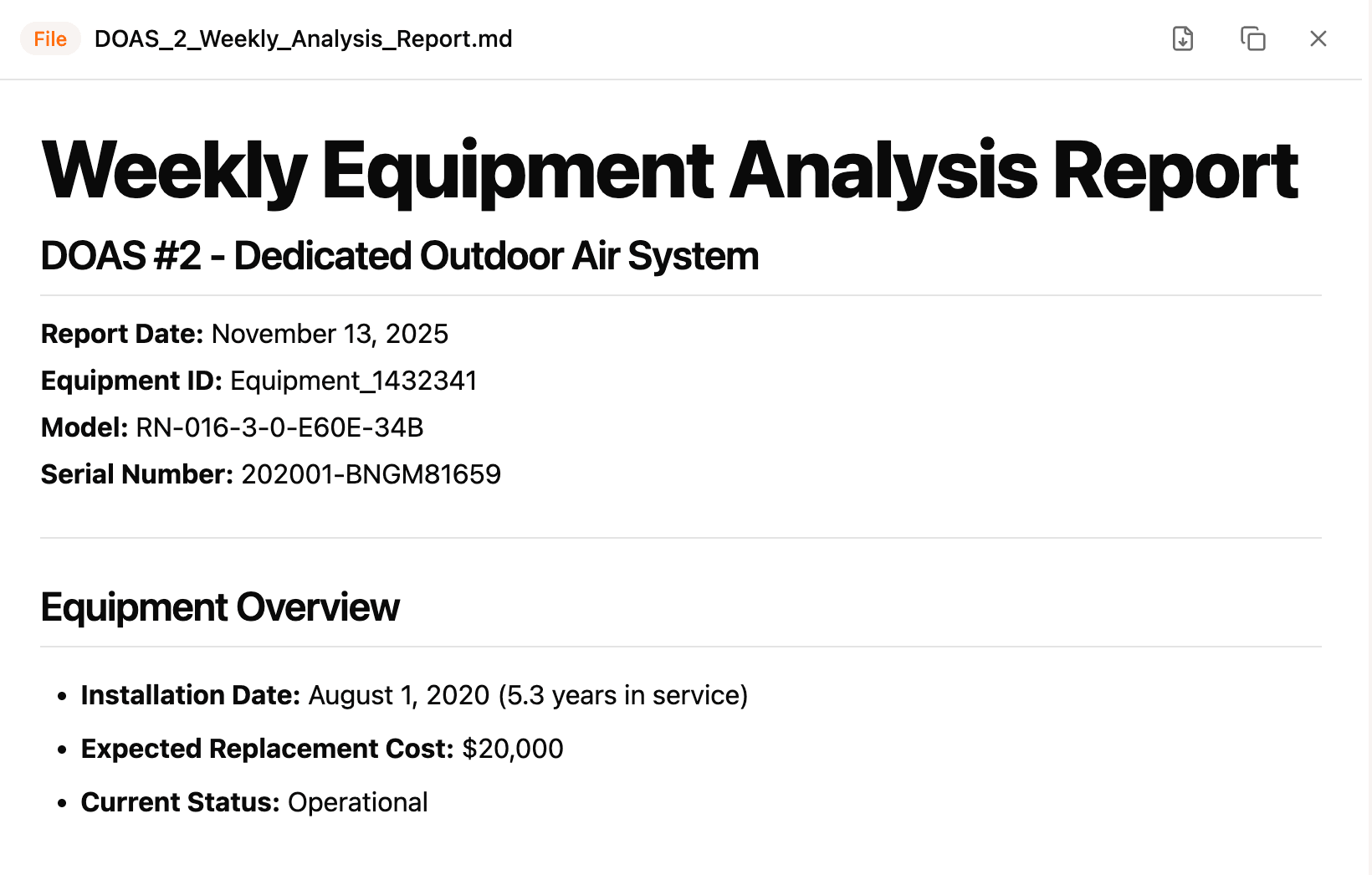
When adding a property to a twin, if that property has an associated unit (for example: °F, PSI, kWh), you'll now see a unit selector.
This ensures properties are consistently defined across the system.
AI Engineer Output Reduction
Files generated by the AI engineer are now optimized to be shorter and more concise.
Twin Classification Updates
The twin classification panel is now a side card so you can keep the 3D model in view while classifying.
Note: Clicking an item in the side card will highlight it in the model in a future update.
Share AI Engineer Threads
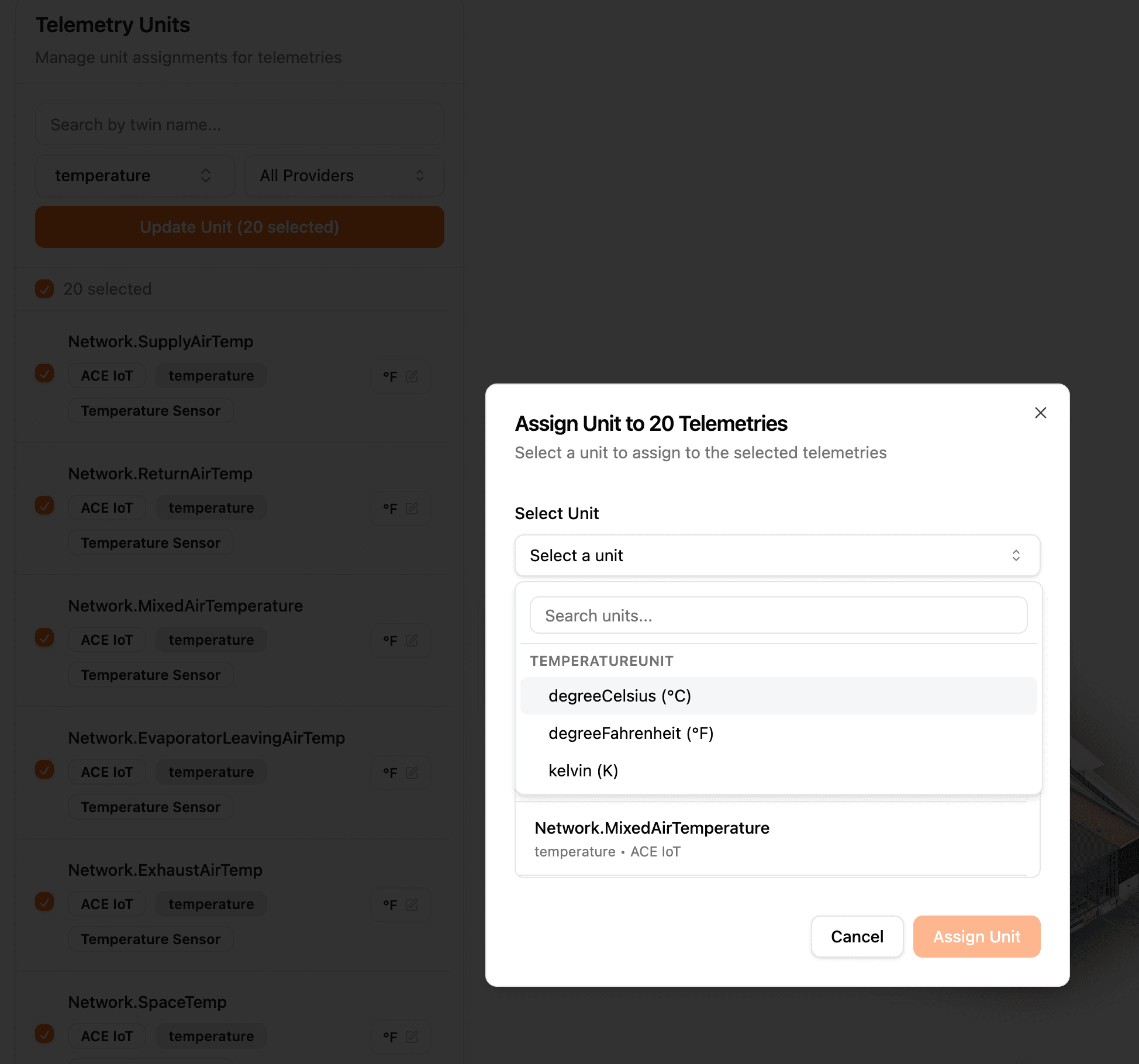
You can now share AI engineer conversation threads via link.
Example: https://app.syyclops.com/share/thread/019a7dc1-6de7-7302-8322-203983561f10
Export AI Engineer Files to DOCX
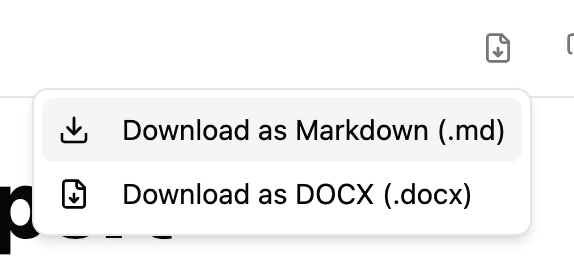
When the AI engineer generates a document, you can now download it in DOCX format (.docx).
Manual Property Creation, Work Order Page, Room View & File Management
Manually Add Properties to Twins
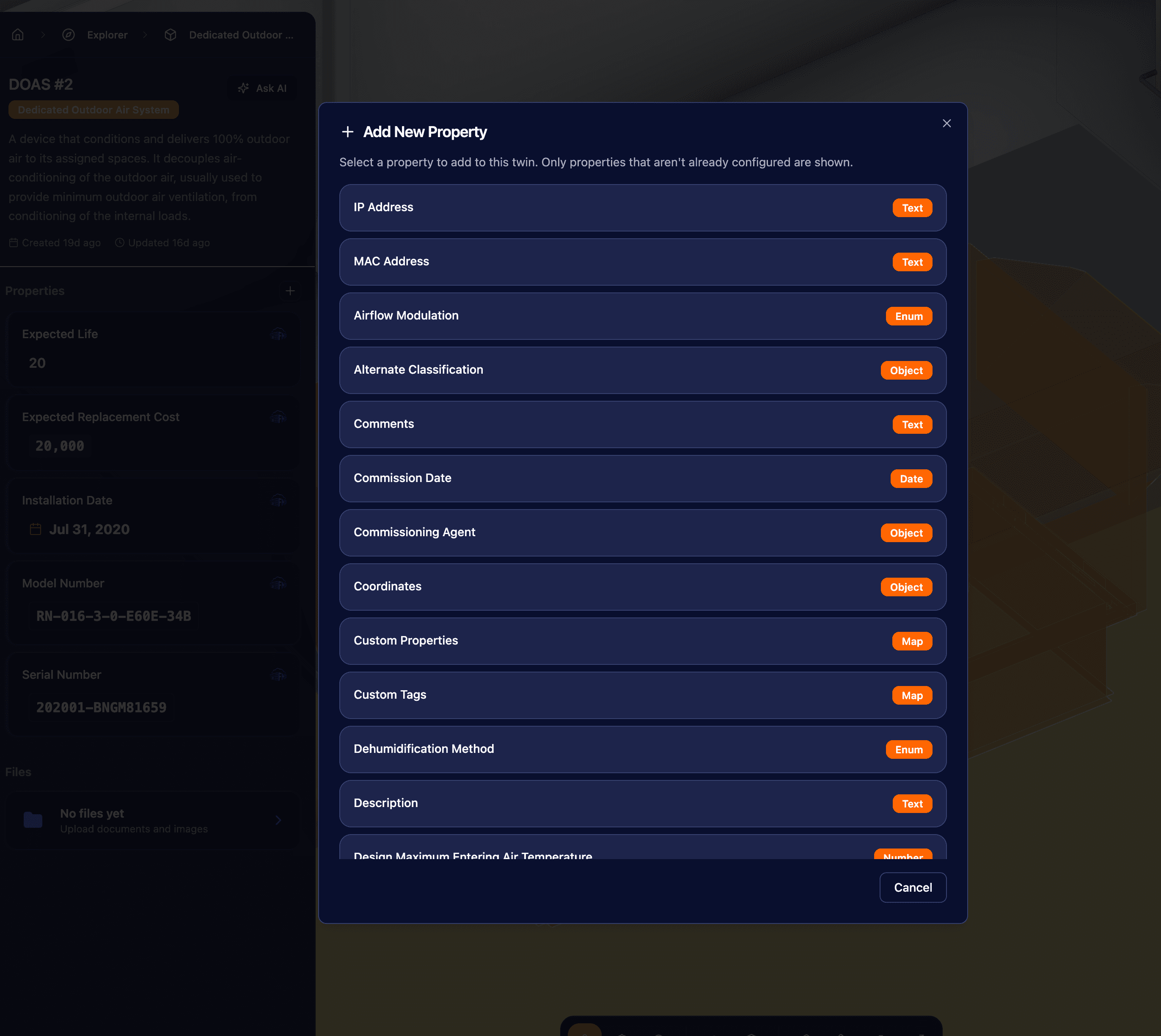
You can now create and edit properties on twins directly inside Syyclops. Until now, properties were primarily sourced from external systems or BIM imports. With this update, you can capture new information in the platform itself.
This keeps Syyclops as the source of truth for building data as things change over time.
How it works:
1. Open a building and navigate to a specific twin
2. Click the "+ Add Property" button
3. You'll see available properties based on the twin's ontology/interface
4. Enter values and save
For example, when working with an Air Handling Unit, only AHU-related properties will be available, keeping data structured and consistent.
Dedicated Work Order Page
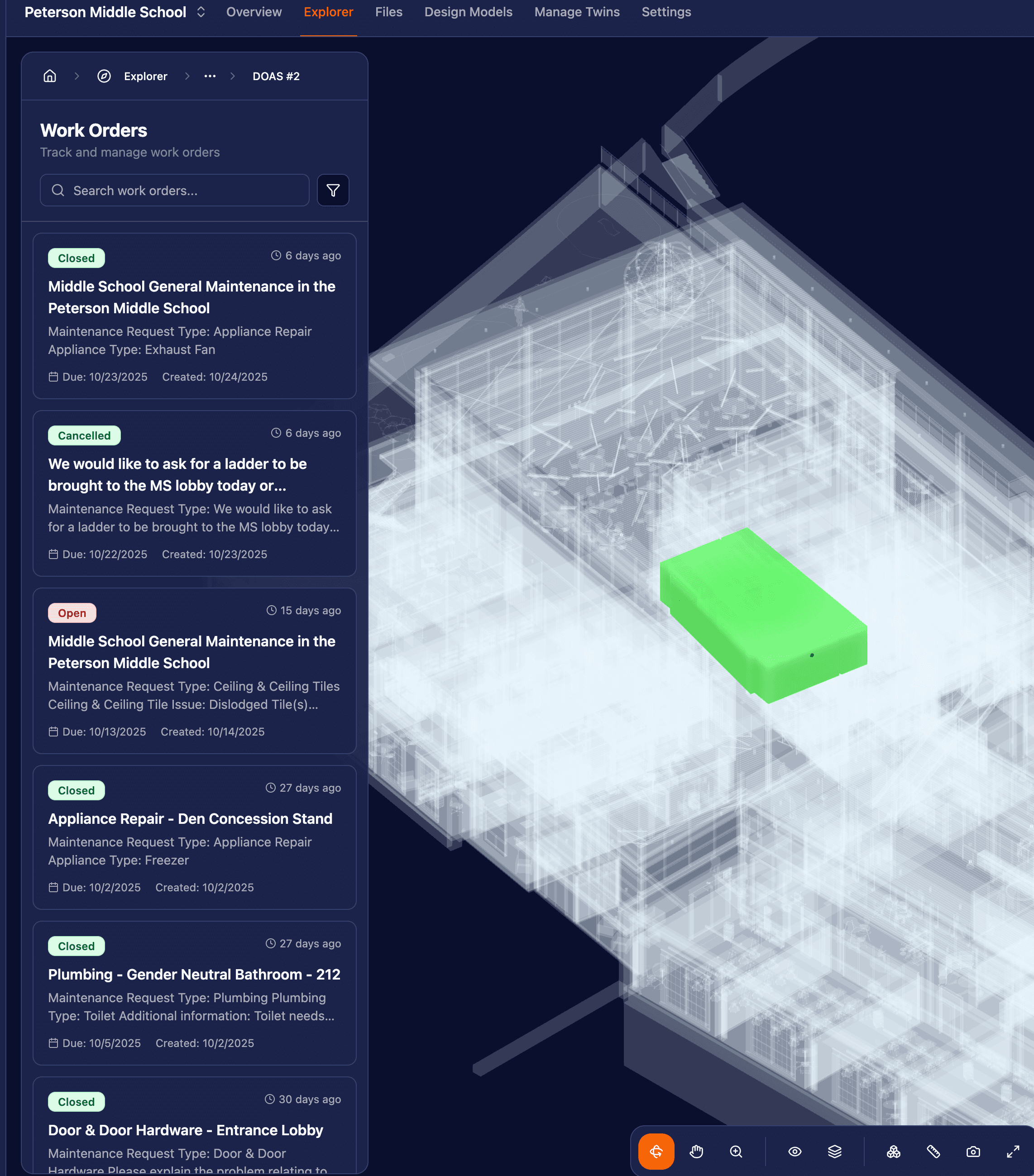
Work orders now have a full dedicated view that makes them easier to review, prioritize, and act on.
Key improvements:
• Organized list view with better sorting and filtering
• Ability to see affected spaces and assets directly in the 3D building model
• Heatmap overlays to highlight clusters or high-activity areas
Where to find it:
• From the dashboard: click the Work Orders widget
• Or via the Explorer → Work Orders
Updated Room View (Auto Floor Cut)
Room pages now automatically cut the surrounding floor in 3D, allowing you to clearly see inside the space without extra navigation steps.
This makes room-level investigation much simpler, especially when reviewing assets or work orders associated with specific rooms.
How to try it:
• Use the Explorer to navigate to a Room Twin
Delete Files
File management now supports deleting uploaded files, giving you more control over stored documents and attachments.
Look for the Delete option in the file list menu.